Assign Roles to Users
Defining a role ensures that users have ownership over specific subsections. Roles provide a way to group permissions and assign them to users or user groups.
-
Follow the steps for adding a user until you reach the Roles section.
-
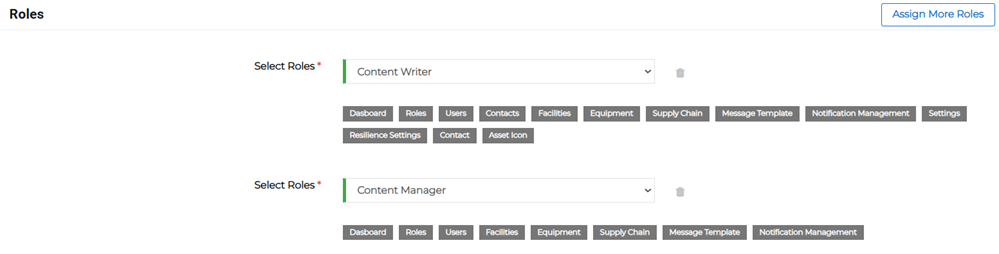
Click the Select Roles menu and choose a role from the list. Once a role is selected, the list of permissions will be shown as labels below the selected role.

-
A single user can be assigned more than one role. If you want to assign another role, click Assign More Roles then choose another role from the new dropdown list.
-
If you added a role and you would like to remove it from the list, click the trash can
 button next to the appropriate role.
 -
Continue with the steps to Add a User and save your selections.