Manage Existing Users
The list of users can be refreshed on the screen using the refresh  button in the upper right.
To manage or delete existing users, follow the instructions by expanding the headings below.
 Edit a user
-
On the main menu, click
 Users.
 -
In the Users page, click the user's name to navigate to the user's information page.
-
Click Edit to amend any of the details for the user, such as contact details, email address, roles, contacts, or address. The Edit User page opens.
-
When you have made the appropriate changes, click Save.
An alternative method for accessing the Edit User page is to click the Actions button for the user and select Edit from the menu.
Audit user activity
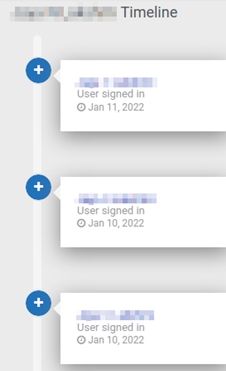
Audit logs can be used to record information of when a user logged into Juvare ARC. A series audit logs act as an audit trail because it shows a sequential record of all logins by the user. System Administrators can track user activity and investigate any potential breaches by reviewing audit logs.
-
On the main menu, click
Users. -
In the Users page, click the link for a user to navigate to their user information page.
-
Scroll down to where you can see the user's timeline. All logs are located under this heading.
Reset a user's password
-
On the main menu, click
Users. -
In the Users page, click the user's name to navigate to the user's information page.
-
Click Actions then select Reset password from the menu. The password reset email will be sent to the user.
Reset a user's 2-factor authentication
-
On the main menu, click
Users. -
In the Users page, click the user's name to navigate to the user's information page.
-
Click Actions then select Reset 2-FA from the menu. The 2-factor authentication reset email will be sent to the user.
An alternative method for resetting the 2-factor authentication without navigating to the Edit User page is to click the Actions button for the user and select Reset 2-FA from the menu.
Block a user
-
On the main menu, click
Users. -
In the Users page, click the user's name to navigate to the user's information page.
-
Click Actions then select Block User from the menu. The user will be blocked from accessing Juvare ARC, but not deleted from the application.
An alternative method for blocking a user without navigating to the Edit User page is to click the Actions button for the user and select Block User from the menu.
Delete a user
-
On the main menu, click
Users. -
In the Users page, click the user's name to navigate to the user's information page.
-
Click Actions then select Delete from the menu. Deleting a user will delete all the data about a user.
-
Confirm the deletion.
An alternative method for deleting a user without navigating to the Edit User page is to click the Actions button for the user and select Delete from the menu.