View and Manage Incidents
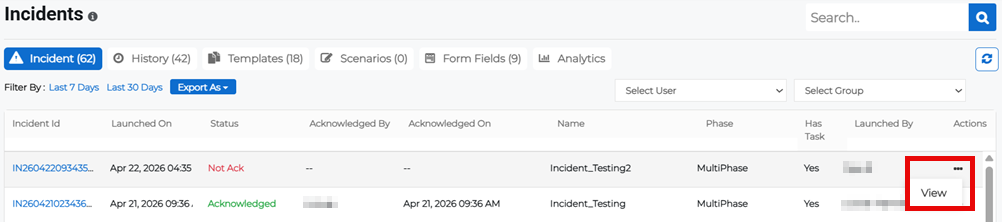
The list of incidents can be refreshed using the refresh  button in the upper right. You can also filter for incidents by user or group, or filter incidents by the last 7 or 30 days. These options are above the incidents table.
To view and manage incidents, including reviewing incident history and reports, follow the instructions by expanding the headings below.
 View an incident
-
On the main menu, click
 Incident Management. The Incidents page opens.
 -
Click the Incident tab, then click the incident ID link to view incident details such as incident title, ID, type, category, who it was launched by and when, and when it was last updated.
Alternatively, on the Incidents page, click the Actions button for the appropriate incident and select View from the menu.
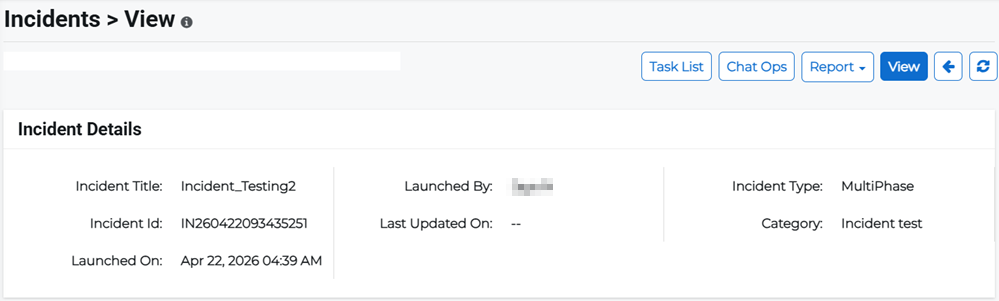
The incident view also includes details of the broadcast settings, incident phases, target recipients, form fields, task lists, and operator notes.
-
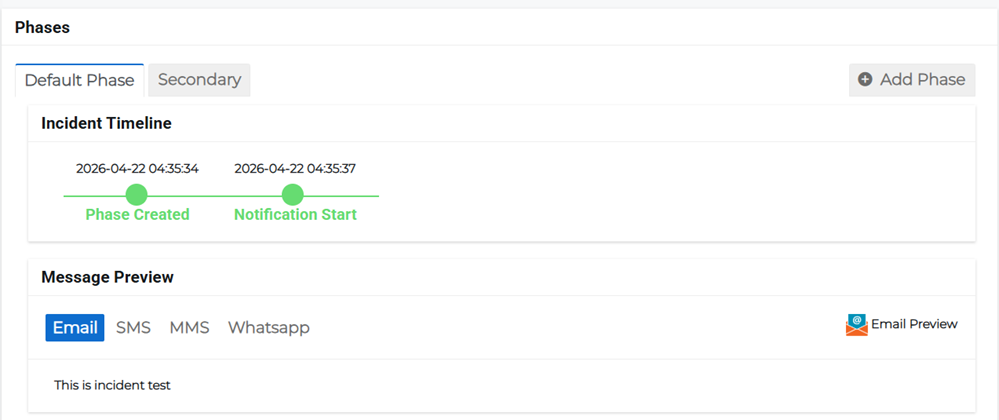
Review incident phases. You can see when the incident was created, when the notification was started, when the notification response was confirmed, and when the incident was completed for any given phase.
View an incident's task list
-
On the main menu, click
Incident Management. The Incidents page opens. -
Click the Incident tab, then click the incident ID link. The incident details page opens.
-
Click Task List. The task list details page opens. This displays information regarding what tasks are associated with the incident, what tasks require attention, how much time was allocated to each task, tasks by status, and what phases the tasks are associated with.
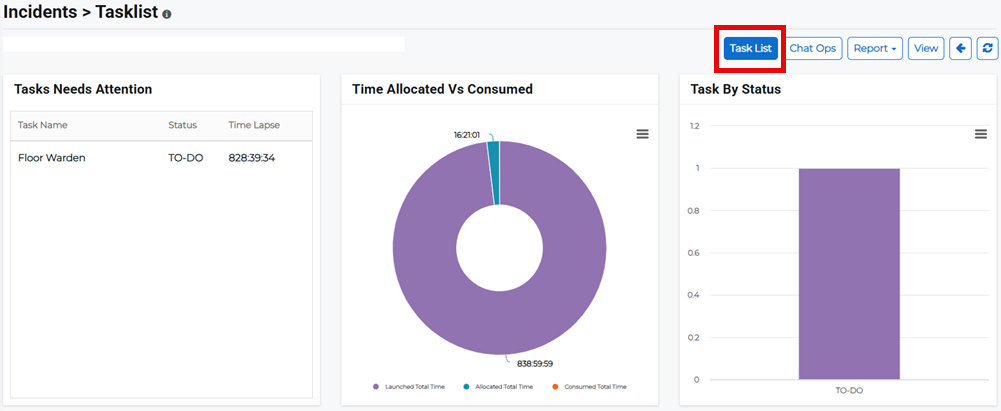
You can create new tasks and task lists from this page. For more information, refer to Create a Task List Template.
Chat with Ops about an incident
-
On the main menu, click
Incident Management. The Incidents page opens. -
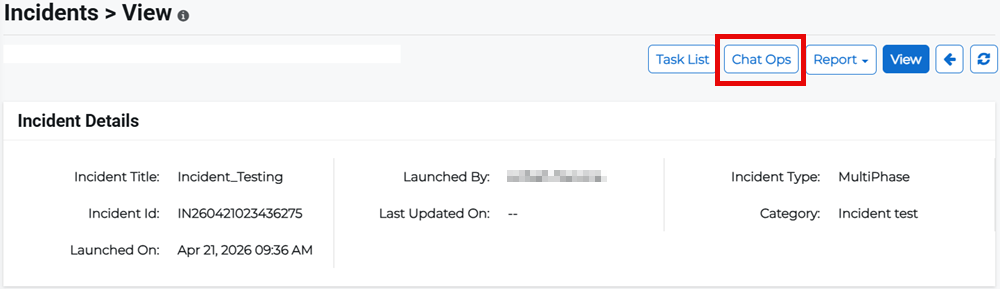
Click the Incident tab, then click the incident ID link. The incident details page opens.
-
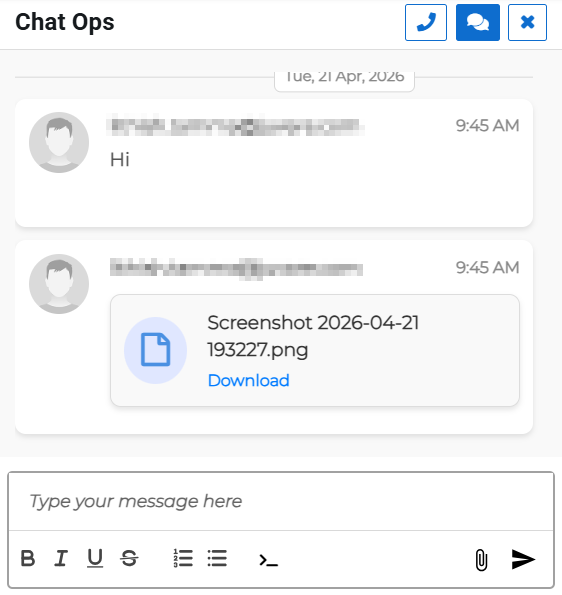
Click Chat Ops to speak to the Operations team regarding the incident template. The chat panel opens.
-
To chat with the Operations team, either:
-
Click the chat
 button to have a text conversation. Enter your messages and upload attachments, if necessary.
 -
Click the call
 button to initiate a voice call with the Operations team. This launches the incident management call space.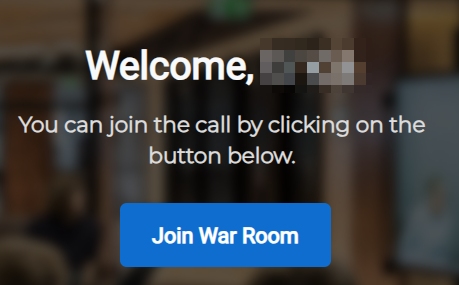
-
View a launched incident report
This allows you to view the report for a specific, active incident, and is used to review what needs to be done before the incident can be closed.
-
On the main menu, click
Incident Management. The Incidents page opens. -
Click the Incident tab, then click the incident ID link. The incident details page opens.
-
Click Report to view the details of the incident and the contacts who received the incident notifications.
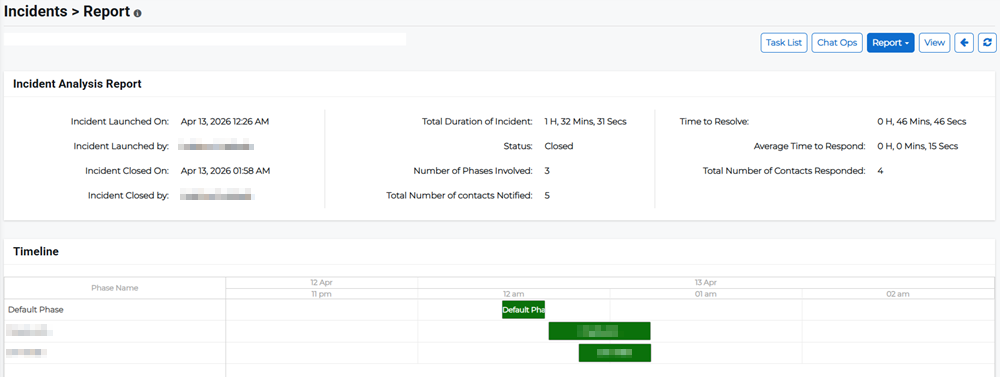
To export the report details, click the dropdown arrow on the Report button to access the menu, then select Excel or PDF to export to these formats.
Close an incident
-
On the main menu, click
Incident Management. The Incidents page opens. -
Click the Incident tab, then click the incident ID link. The incident details page opens.
-
Click the Actions menu and select Close from the menu.
You can only close an incident if all phases in an incident have been closed.
Export the incident list
-
On the main menu, click
Incident Management. The Incidents page opens. -
Click the Incident tab, then search or filter the list (as needed) or leave the list unfiltered if you want to export all incidents.
-
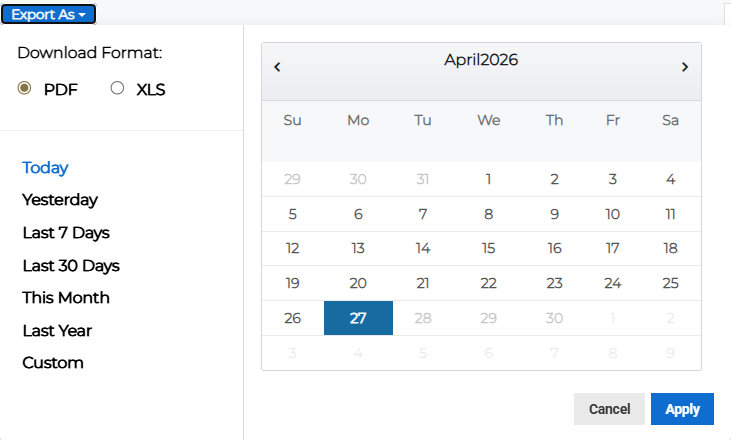
Click Export As at the top of the incident list. The export pop-up opens.
-
Select whether to export the list as a PDF or XLS file.
-
Specify the date range of the incidents you want to export.
-
Click Apply.
View incident history
Incident history includes all details of an incident, from occurrence to resolution. This includes the original report, investigation, conclusions, remediation, verification of completion or remediation, and assessment of the resilience of improvements achieved.
-
On the main menu, click
Incident Management. The Incidents page opens. -
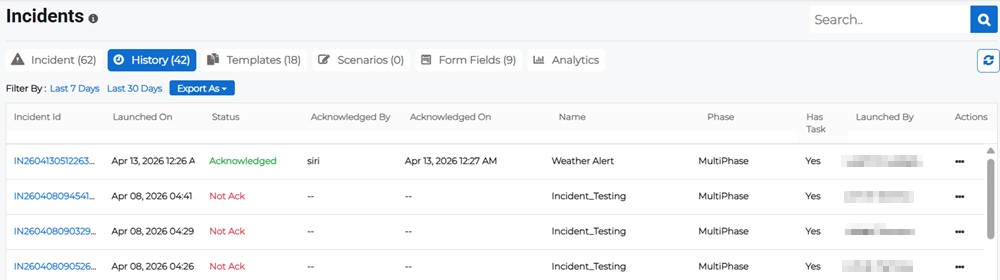
Click the History tab. A list of all incidents are shown, regardless of whether they have been acknowledged or not.
-
Click the incident ID link to view the incident details and progression of the incident.
Alternatively, on the Incidents page, click the Actions button for the appropriate incident and select View from the menu.
View an incident history report
This allows you to view the report for a specific, closed incident.
-
On the main menu, click
Incident Management. The Incidents page opens. -
Click the History tab, then click the incident ID link to view the incident details. The incident view page opens.
-
Click Report to view the details of the incident and the contacts who received the incident notifications.
To export the report details, click the dropdown arrow on the Report button to access the menu, then select Excel or PDF to export to these formats.