Create an Incident Template
Incident Templates are predefined template formats used to save time and simplify the user input process while an incident is ongoing. This allows an organization to customize the template with dynamic form fields, organize incident messages with media (files, audio, and video), and add task lists for respective task owners. This predefined data in the incident templates is then populated when the template is used, eliminating the need to manually re-enter this data.
To create an incident template
-
On the main menu,click
 Incident Management. The Incidents page opens.
 -
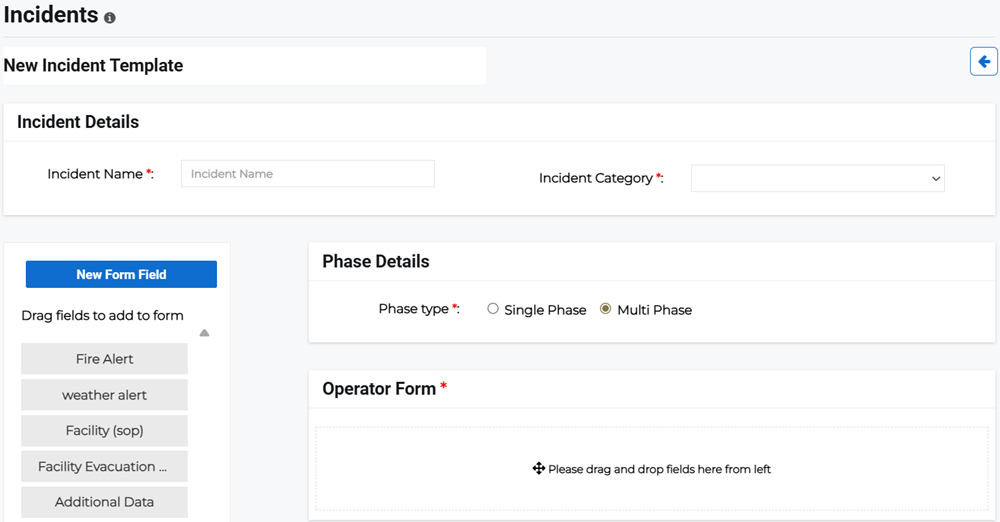
Click the Templates tab, then click Create Template in the upper right and select Incident Template from the menu. The New Incident Template page opens.
-
Enter the following details:
-
Incident Name: Enter the name of the incident.
-
Incident Category: Select the incident category from the menu.
-
Phase Type: Specify the phase type as either Single Phase or Multi Phase.
-
Operator Form: Drag and drop the new form fields from the left pane to the Operator Form box to create dynamic form fields for an incident.
-
-
Enter the phase type details:
 If you chose Single Phase for the phase type
-
SMS: Enter the message into the text box.
-
Include a separate message for Email notifications: Enable this checkbox to include a separate email message. In this case, enter the Email Subject and Email message, and attach any files that need to be included.
-
Speech: Specify whether you want to use Text to Speech, which converts your message to speech, or Use a voice recording, which allows you to record an audio file.
-
Choose target recipients who will receive the message. Select from: Contacts (specified individuals, groups, or zones) or Staff Scheduling (specified calendar recipients).
-
Select a task list from the menu. This populates the list on the page.
For more information on creating tasks lists, refer to Create a Task List Template.
If you chose Multi Phase for the phase type
-
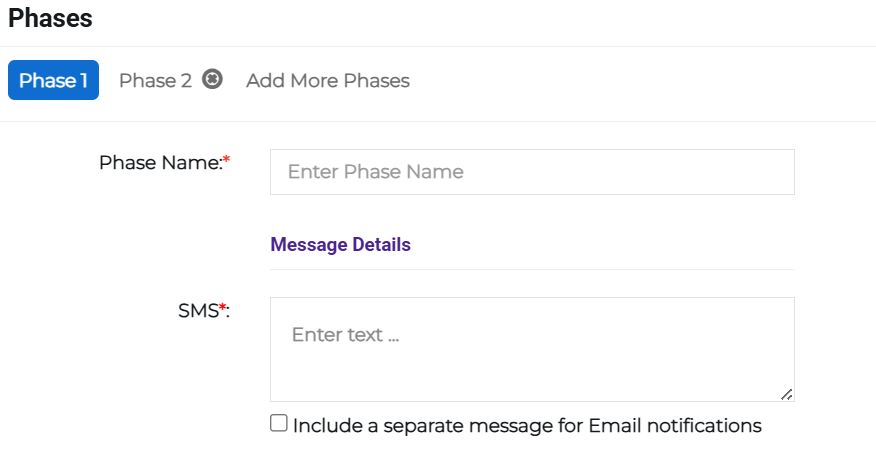
For Phase 1, enter the following:
- Phase Name: Enter the name of phase 1, for example, Response or Restoration.
-
SMS: Enter the message into the text box.
-
Include a separate message for Email notifications: Enable this checkbox to include a separate email message. In this case, enter the Email Subject and Email message, and attach any files that need to be included.
-
Speech: Specify whether you want to use Text to Speech, which converts your message to speech, or Use a voice recording, which allows you to record an audio file.
-
Choose target responders who will receive the message. Select from: Contacts (specified individuals, groups, or zones) or Staff Scheduling (specified calendar recipients).
-
Select a task list from the menu. This populates the list on the page.
For more information on creating tasks lists, refer to Create a Task List Template.
-
Click Add More Phases then click the new phase tab and enter the phase-specific details for the fields you entered in Phase 1. Repeat this step for as many phases as required.
-
If you need to delete a phase, click the x button next to the phase name tab.
-
-
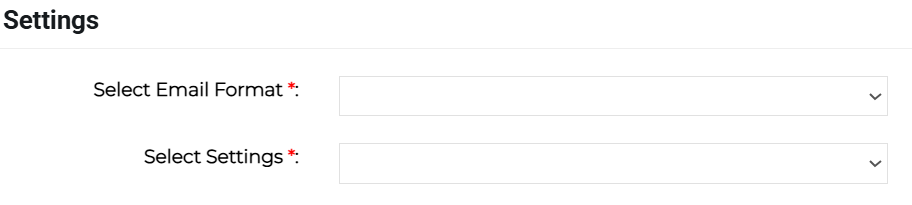
Select the appropriate email format and settings from the Settings menus.
-
Specify which teams can access and use the incident template by toggling the checkboxes in the Access Settings pane.
-
Click Save or Submit.
Related Concepts
Related Tasks