Create a Scenario
Scenarios are a combination of incident templates. Scenarios can be of various types and intensity levels, such as prolonged power outages due to regional grid failures, road blockades, or traffic disruptions.
Incident templates must be set up before you can use them to create scenarios.
Each scenario can have multiple incident templates and each incident template can have multiple phases such as a response phase, recovery phase, and a restoration phase.
To create a scenario
-
On the main menu, click
 Incident Management. The Incidents page opens.
 -
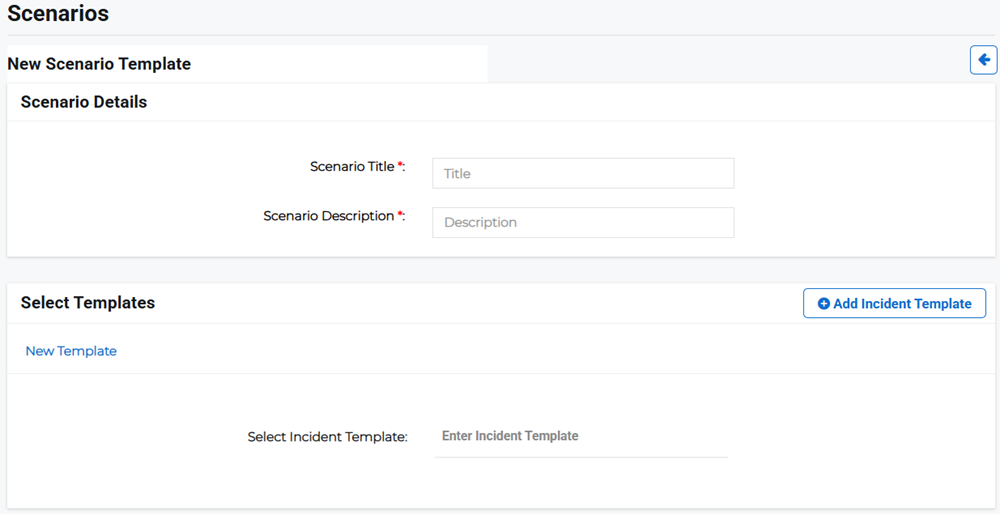
Click the Scenarios tab, then click Create Scenario in the upper right. The New Scenario Template page opens.
-
Enter the following scenario details:
-
Scenario Title: Enter the scenario name, for example, Grid Failure Power Outage.
-
Scenario Description: Enter the description for the scenario, including what it covers or should be used for.
-
-
Enter the name of the template you want to use for the scenario. As you type, matching templates populate in the menu. Select one of the existing template options. The incident template details display below.
For more information on how to create a new incident template, refer to Create an Incident Template
-
Add more incident templates by clicking Add Incident Template then selecting another template to use for the scenario.
-
Click Save if you want to save a draft scenario to edit later or Submit to finish.
Related Concepts
Related Tasks