Manage IT Service Settings
On the main menu, click click  IT CM to navigate to the IT CM page. On the IT Services tab you can create integrations, rule sets, maintenance modes, service dependencies, and separation times for a service.
When you have clicked the service name link, the services details pages opens. Scroll down to the Settings pane for more information.
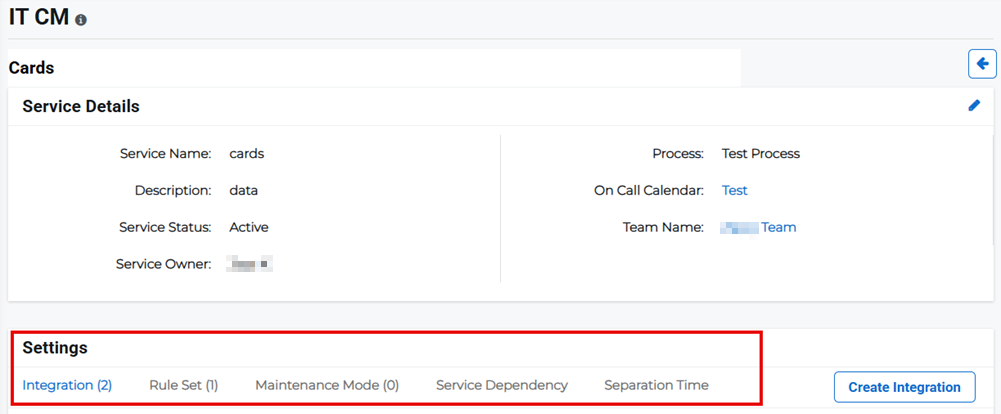
To create or manage IT service settings, follow the instructions in the headings below.
Integrations
For a list of integration services, refer to Add IT Event Integrations.
 Create an integration
-
In the service details page for the appropriate service, select the Integration tab in the Settings pane.
-
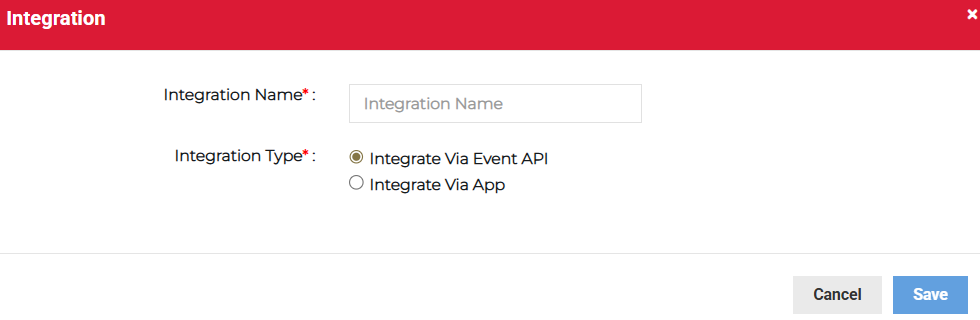
Click Create Integration. The Integration dialog opens.
-
Enter the integration details:
-
Integration Name: The name of the integration, for example the application name.
-
Integration Type: Specify whether the integration is through the event API or through an application. If you choose Integrate Via App, you also need to choose an Integration App from the list provided.
-
-
Click Save.
Edit an integration
-
In the service details page for the appropriate service, select the Integration tab in the Settings pane.
-
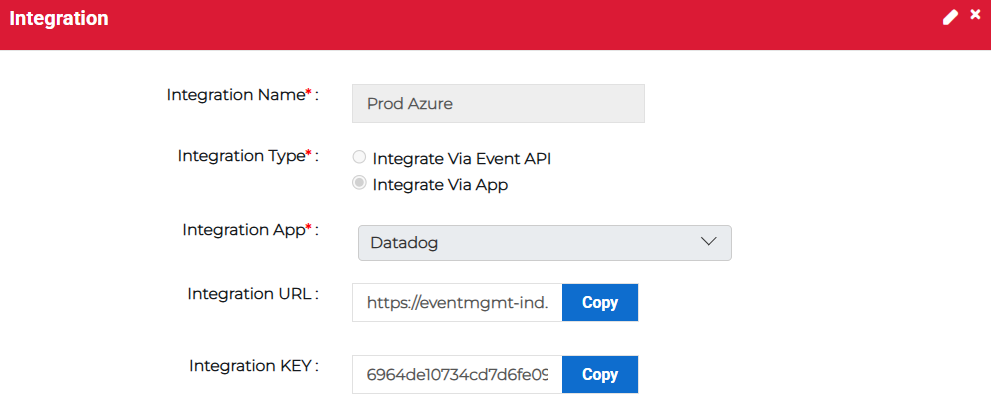
Click the integration name link in the list. The Integration dialog opens.
-
Review the integration settings and if you need to amend the details, click the edit icon in the upper right.
-
Edit the appropriate details then click Save.
Delete an integration
-
In the service details page for the appropriate service, click the Actions button for the integration then select Delete from the menu.

-
Confirm the deletion.
Rule Sets
Rule sets define conditions that, when met, trigger an incident and alert, or only an alert.
Create a rule set
-
In the service details page for the appropriate service, select the Rule Set tab in the Settings pane.
-
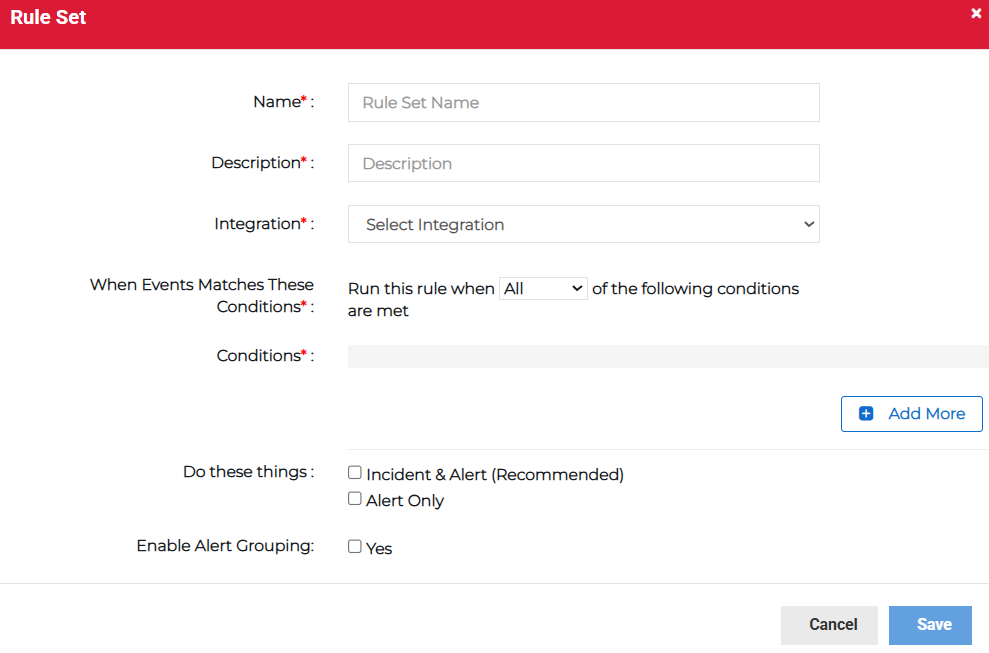
Click Create Rule Set. The Rule Set dialog opens.
-
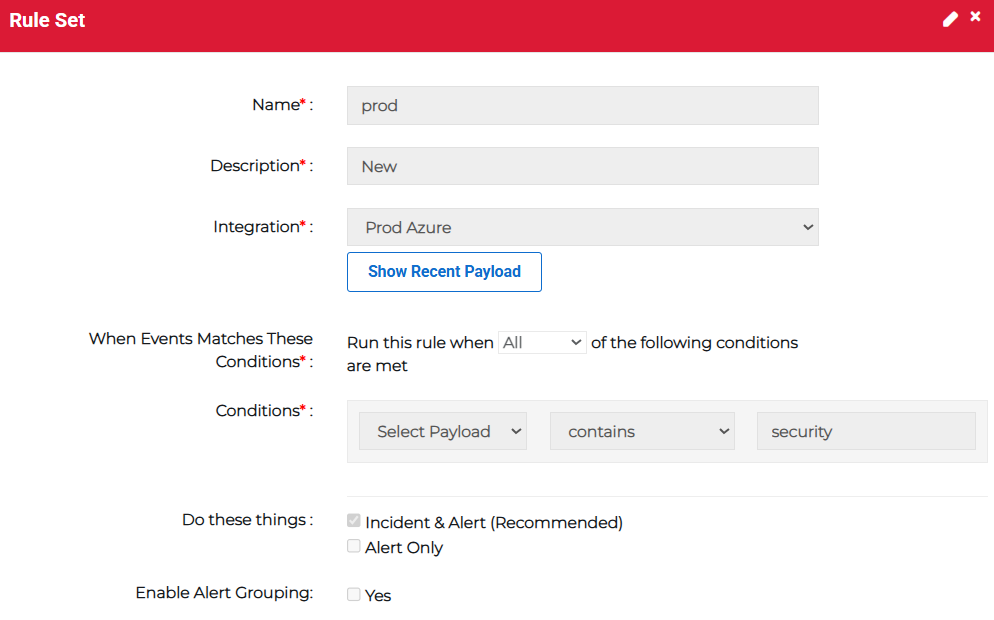
Enter the rule set information:
-
Name: Enter the name of the rule set.
-
Description: Enter the description of what the rule set is or does.
-
Integration: Select the integration the rule set belongs to from the menu.
-
When Events Match These Conditions: Select whether this rule is run when All or Any one of the following conditions are met.
-
Conditions: Specify the conditions that must be met for the rule set to run. Click Add More to create conditions.
-
Do these things: Select whether the rule set generates an incident and alert, or only an alert when the rule is run.
-
Enable Alert Grouping: Specify whether the alerts should be grouped.
-
-
Click Save.
Edit a rule set
-
In the service details page for the appropriate service, select the Rule Set tab in the Settings pane.
-
Click the rule set name link in the list. The Rule Set dialog opens.
-
Review the rule set settings and if you need to amend the details, click the edit icon in the upper right.
-
Edit the appropriate details then click Save.
Delete a rule set
-
In the service details page for the appropriate service, click the Actions button for the appropriate rule set then select Delete from the menu.

-
Confirm the deletion.
Maintenance Modes
Create a maintenance mode
-
In the service details page for the appropriate service, select the Maintenance Mode tab in the Settings pane.
-
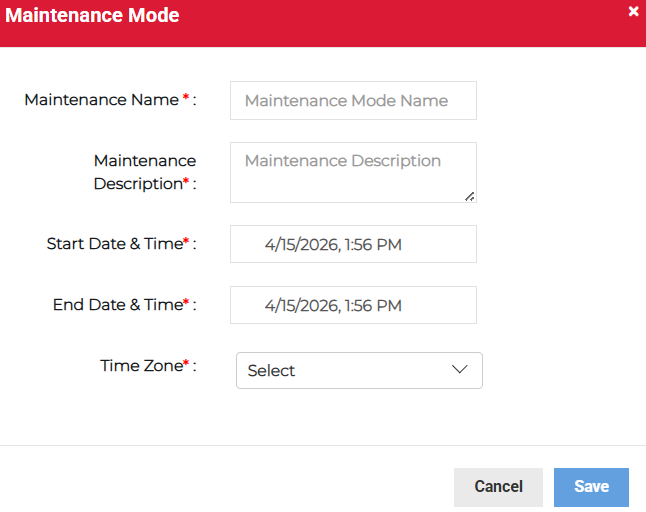
Click Create Maintenance. The Maintenance Mode dialog opens.
-
Enter the maintenance mode information:
-
Maintenance Name: Enter the name of the maintenance mode.
-
Maintenance Description: Enter the description of what the maintenance mode is used for.
-
Start Date & Time: Specify the start date and time.
-
End Date & Time: Specify the end date and time.
-
Time Zone: Select the timezone from the menu.
-
-
Click Save.
Edit a maintenance mode
-
In the service details page for the appropriate service, select the Maintenance Mode tab in the Settings pane.
-
Click the maintenance mode name link in the list. The Maintenance Mode dialog opens.
-
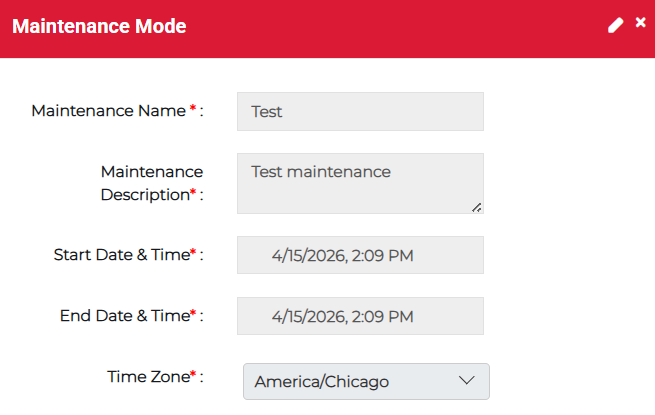
Review the maintenance mode settings and if you need to amend the details, click the edit icon in the upper right.
-
Edit the appropriate details then click Save.
Delete or cancel a maintenance mode
-
In the service details page for the appropriate service, click the Actions button for the appropriate maintenance mode then select Delete from the menu.

-
Confirm the deletion.
If you want to stop a maintenance mode, but think you may need to use it again in the future, you can cancel it instead of deleting it.
Service Dependencies
Create a service dependency
-
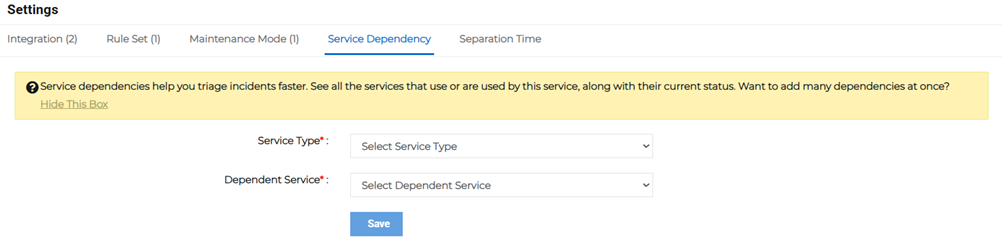
In the service details page for the appropriate service, select the Service Dependency tab in the Settings pane.
-
Enter the dependency details:
-
Service Type: Select the service type from the menu.
-
Dependent Service: Select dependent service from the menu.
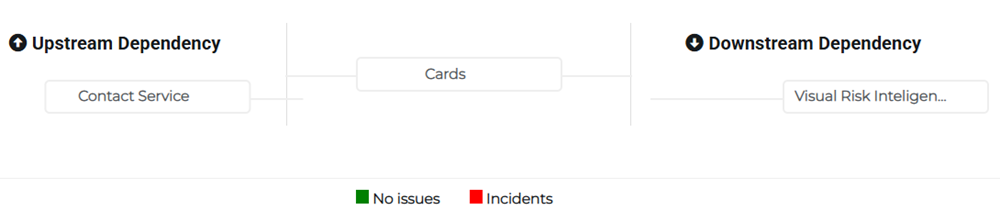
Based on your selections, both the upstream and downstream service dependencies are mapped.
-
-
Click Save.
Delete a service dependency
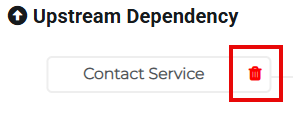
In the service details page for the appropriate service, click the Service Dependency tab then click the delete icon to delete the respective dependency.
Separation Times
Set up a separation time
-
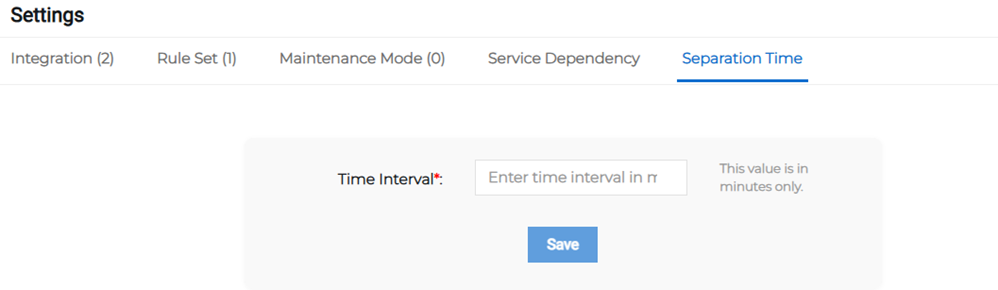
In the service details page for the appropriate service, select the Separation Time tab in the Settings pane.
-
Enter the Time Interval in minutes. This is the minimum number of minutes between times the service is run.
-
Click Save.
Edit a separation time
-
In the service details page for the appropriate service, select the Separation Time tab in the Settings pane.
-
Click the edit
 icon next to the Time Interval shown, then adjust the number of minutes.
 -
Click Save.
Related Concepts
Related Tasks