Create a Contact Group
A contact group is a communication distribution list formed with multiple contacts and filters set up to send alerts instantly to everyone in the group.
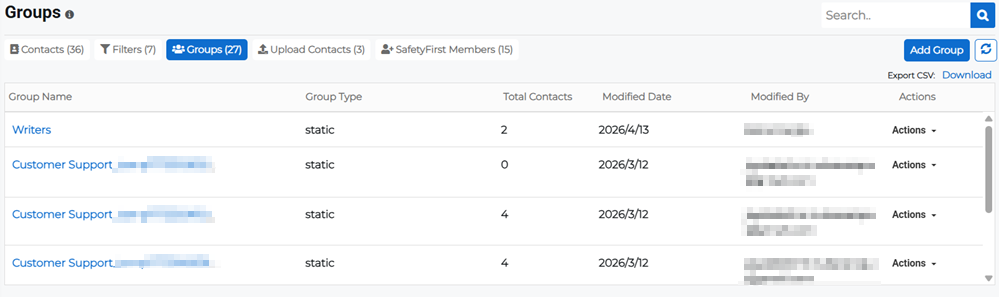
On the Contacts page, the Groups tab allows you to create a group from the list of available contacts and filters for sending information, such as threat alerts or emergency mass notifications.
Individual contacts can be part of as many groups as required.
Create groups for specific teams, departments, or functions. There are two types of groups:
-
Static refers to a group that is created by selecting contacts manually.
-
Dynamic refers to a group that is created by selecting contacts from filters.
The steps below are shared by static and dynamic groups. Whether it is static or dynamic is specified in step two.
To create a group
-
On the main menu, click
 Contacts. The Contacts page opens.
 -
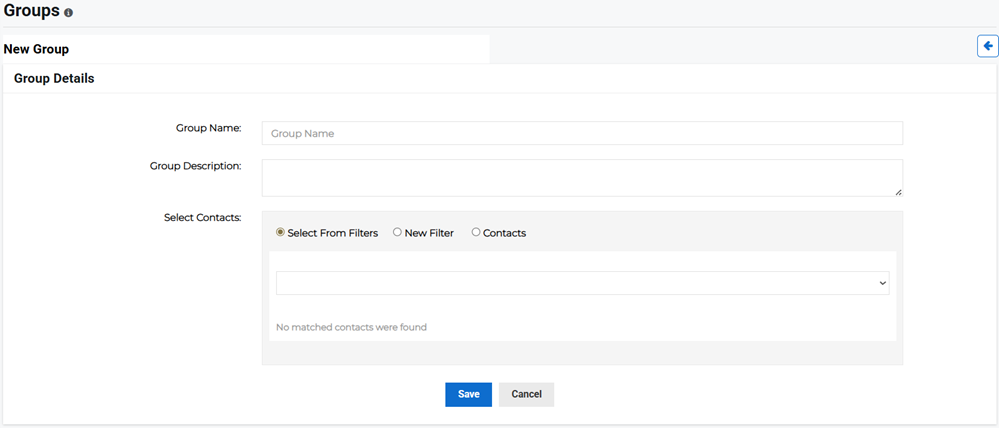
Click Groups then click Add Group. The New Group page opens.
-
Enter the required details for creating a new group:
-
Group Name: The name for the group of contacts.
-
Group Description: A description for what the group is used for.
-
Select Contacts: How you want to select contacts.
-
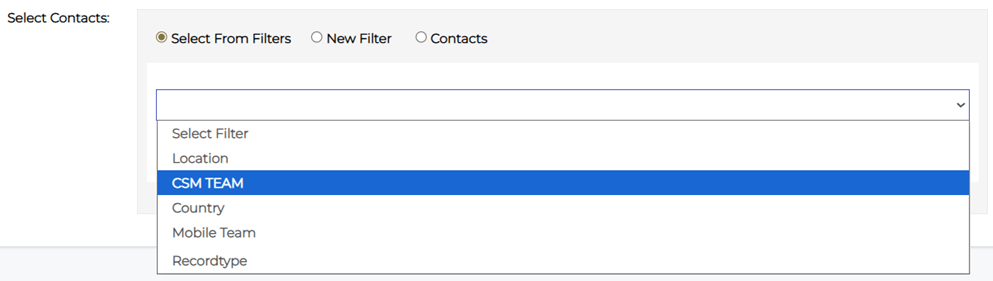
Select from filters: Select from existing filters.
-
New Filter: Add a new filter and create a group from them.
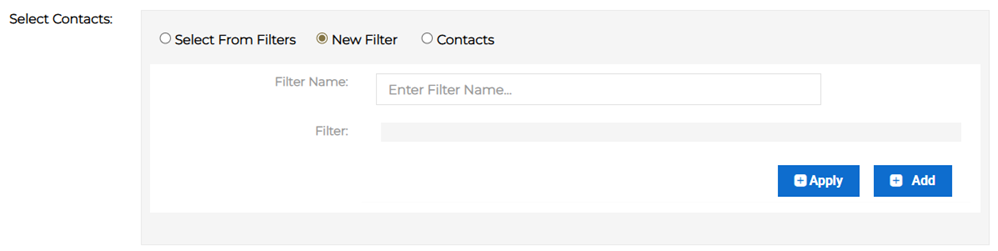
The process is the same as creating filters. For more information, refer to Create a Contact Filter.
-
Contacts: Select specific contacts from the list of all available contacts.
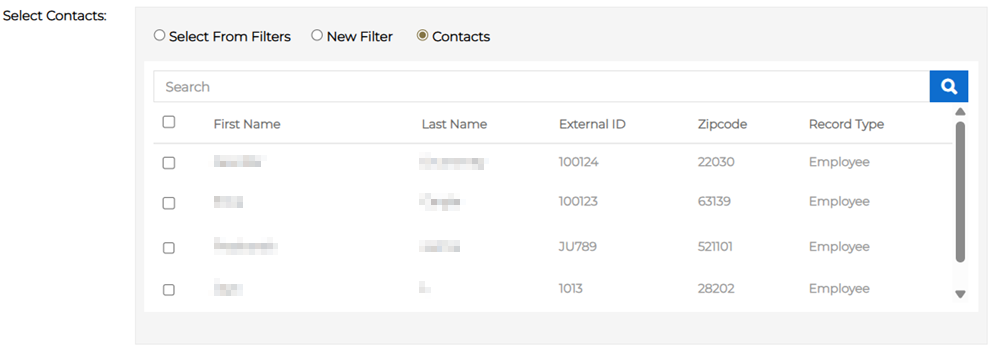
You cannot create a group with only a single contact.
-
-
-
Click Save. The group now appears in the list under the Groups tab.