Configure SMTP Settings
To configure the Simple Mail Transfer Protocol (SMTP) settings, follow the instructions by expanding the headings below.
 Create an SMTP setting
-
On the main menu, click
 Settings. The Portal Settings page opens.
 -
Click the Resilience Settings tab, then click SMTP Setting on the left.
-
Click Add OAuth2 to add or edit the SMTP setting.
-
Enter the following details:
-
SMTP Host: Enter the host name.
-
SMTP Port: Enter the port details.
-
From Email: Enter the email from which the settings originate.
-
Tenant ID: Enter the tenant ID.
-
Client ID: Enter the client ID.
-
Client Secret: Enter the password.
-
-
Click Save.
Edit or verify the SMTP setting
-
On the main menu, click
Settings. The Portal Settings page opens. -
Click the Resilience Settings tab, then click SMTP Setting on the left.
-
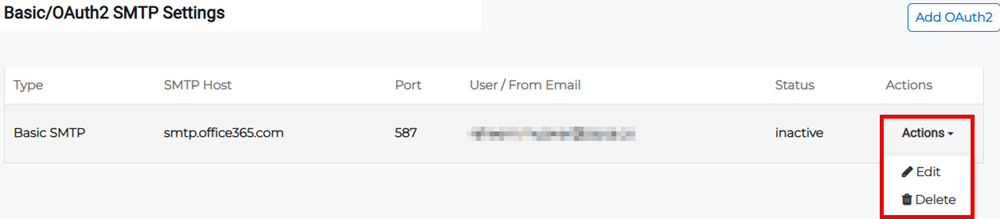
Click Actions for the appropriate setting then select Edit.
-
Updated the appropriate fields then click Update.
-
To verify the SMTP settings, click Verify SMTP then enter the To Email address in the resulting dialog and click Submit.
Delete the SMTP setting
-
On the main menu, click
Settings. The Portal Settings page opens. -
Click the Resilience Settings tab, then click SMTP Setting on the left.
-
Click Actions for the appropriate setting then select Delete from the menu.
Alternatively, click Actions then select Edit from the menu. Click the Remove button in the next screen.
-
Confirm the deletion.
Related Concepts