Create and Manage Broadcast Settings
A broadcast setting is a mass communication setting of the message template, delivery mode, delivery intervals, delivery cycle, and duration.
To manage or add new broadcast settings, follow the instructions by expanding the headings below.
 Add a broadcast setting
-
On the main menu, click
 Settings. The Portal Settings page opens.
 -
Click the Resilience Settings tab.
-
Click Broadcast Settings on the left, then click New Broadcast Setting.
-
Enter the following setting details:
-
Setting Name: Enter the broadcast setting name.
-
Setting Type: Specify the setting type as Notification or Incident.
-
Sender Email Address: Enter the email address of the respective Organization’s sender email ID.
-
Delivery Method: Select one or multiple delivery methods by which contacts receive communication, such as SMS devices, email address, voice calls, and WhatsApp.
-
Delivery Order Set the delivery order as Organization Default or Contact Preferred. Organization default is recommended for standardized and uniform broadcasting delivery.
-
Broadcast Duration: Select the number of hours to define how long the broadcast needs to be active.
-
Interval Between Delivery Methods: Set the interval between delivery methods from 1 to 60 minutes.
-
Contact Cycles: Specify the number of contact cycles from 1 to 20 to define how many times the communication should be repeatedly broadcast if the recipient is not responding in any of the delivery methods.
-
Language: Select the preferred language from the list: English(US), English (UK), and Hindi.
-
-
Click Add.
Review and edit a broadcast setting
-
On the main menu, click
Settings. -
The Portal Settings page opens.
-
Click the Resilience Settings tab, then click the Broadcast Settings on the left.
-
Click the setting name link to view the settings details. If you need to edit any of the details:
-
Click back to the Broadcast Settings page.
-
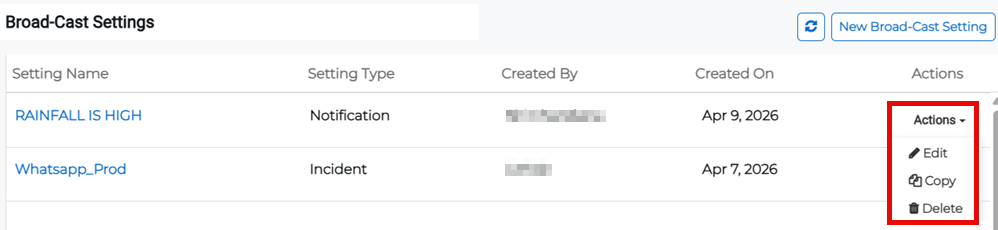
Click Actions then select Edit from the menu.
-
You can edit any of the setting fields.
-
Click Update.
Copy a broadcast setting
-
On the main menu, click
Settings. The Portal Settings page opens. -
Click the Resilience Settings tab then click Broadcast Settings on the left.
-
Click Actions for the appropriate setting then select Copy from the menu.
-
Edit any fields that need to be adjusted, then click Add.
Delete a broadcast setting
-
On the main menu, click
Settings. The Portal Settings page opens. -
Click the Resilience Settings tab then click Broadcast Settings on the left.
-
Click on the setting name.
-
Click Actions then Delete from the menu.
-
Confirm the deletion.
Alternatively, click the Actions button for the appropriate setting and select Delete from the menu.
Related Concepts