Manage Form Fields
The list of form fields can be refreshed using the refresh  button in the upper right.
To manage form fields, follow the instructions by expanding the headings below.
 View a form field
-
On the main menu, click
 Incident Management. The Incidents page opens.
 -
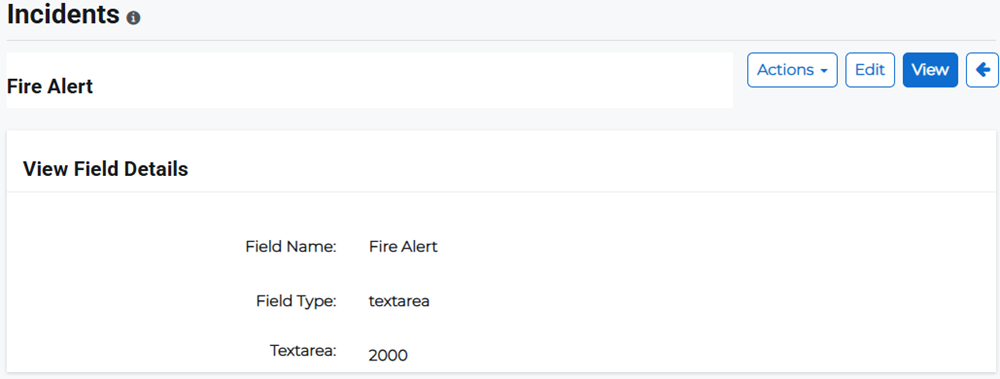
Click the Form Fields tab, then click a field name link. The field details page opens.
Edit a form field
-
On the main menu, click
Incident Management. The Incidents page opens. -
Click the Form Fields tab, then click a field name link. The field details page opens.
-
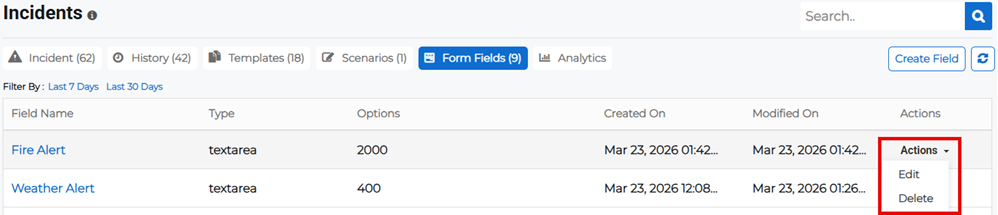
Click Edit.
Alternatively, click the Actions button for the appropriate field and select Edit from the menu.
-
Edit the field name, type, and associated type options, then click Save.
Copy a form field
-
On the main menu, click
Incident Management. The Incidents page opens. -
Click the Form Fields tab, then click a field name link. The field details page opens.
-
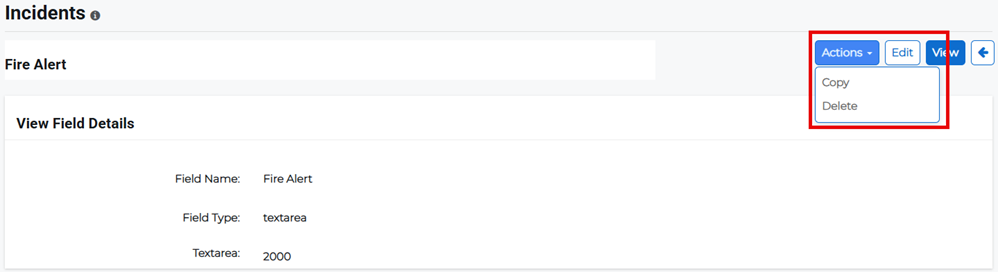
Click the Actions button and select Copy from the menu.
Delete a form field
-
On the main menu, click
Incident Management. The Incidents page opens. -
Click the Form Fields tab, then click a field name link. The field details page opens.
-
Click the Actions button and select Delete from the menu.
Alternatively, click the Actions button for the appropriate field and select Delete from the menu.
- Confirm the deletion.