Create a Contact Filter
A contact filter is a set of contacts dynamically grouped to send messages or alerts to everyone in the filter at once.
A filter can be created from any contact detail field, such as name, record type, or delivery option. You can add your own filters by following the steps below.
To create a contact filter
-
On the main menu, click
 Contacts. The Contacts page opens.
 -
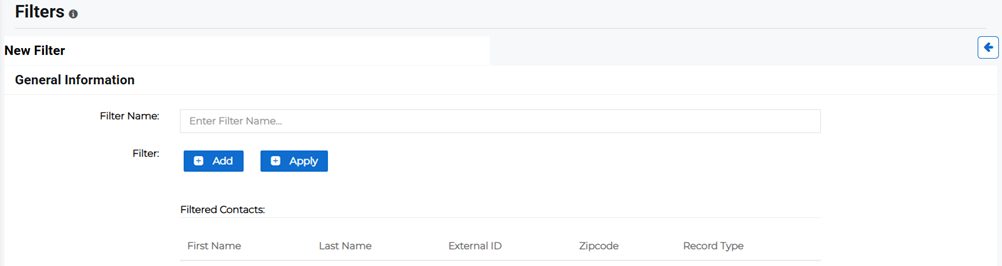
Click the Filters tab then click Add Filter in the upper right. The New Filter page opens.
-
Enter the filter name then click Add to set up your filters.
-
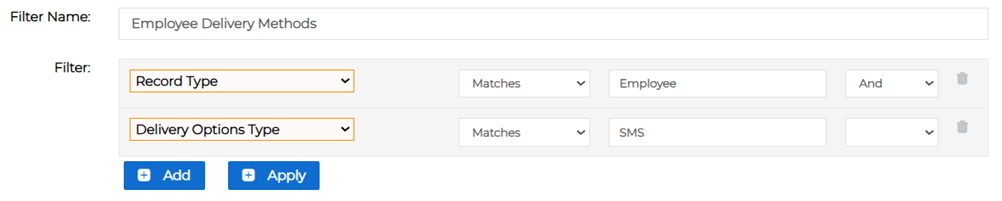
Select the filter from the first dropdown menu. This is the field type that you want to filter against, for example Delivery Options Type.
-
Set whether the filter Matches, is Equal To, or Between the parameters you set in the following text box in the second dropdown menu.
-
Enter the corresponding parameters in the text box.
-
Select whether you want this filter to interact with another using the And or OR operator dropdown menu. This is only required if you are setting up more than one filter type.
-
-
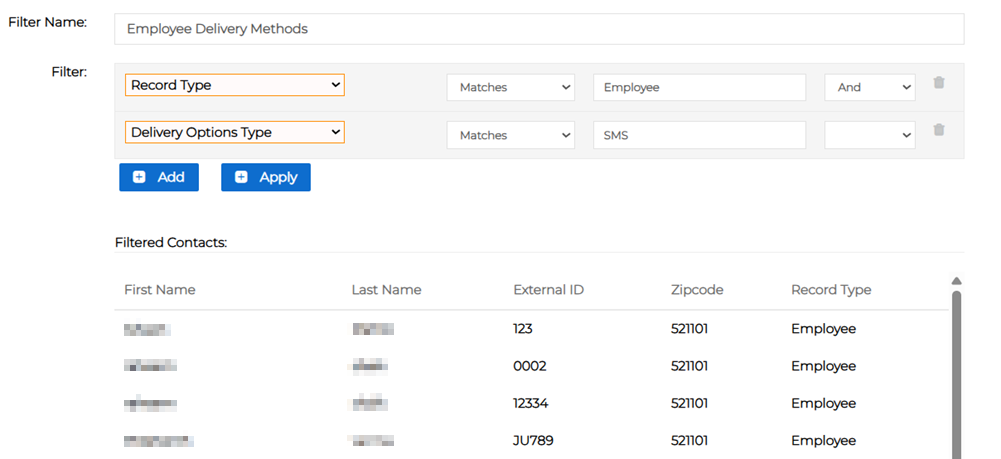
When you have finished setting up your filter list, click Apply.
-
Review the filtered list of contacts at the bottom of the screen.
-
To further refine your list, click Add to set up additional filters, then click Apply again to review the updated list.
-
When the filtered list shows the correct contacts, click Save.