Add IT Processes and Services
IT processes define how IT work is carried out and monitored using time-based thresholds for response, resolution, and closure. IT services are the actual systems and applications that support business operations. IT processes and services are listed on the IT CM (IT Configuration Management) page.
To view a process, including the process details such as a description, the response time, and the close time, click the name of the process in the list.
The latest list of IT processes and services can be refreshed on the screen using the Refresh  button in the upper right.
To add IT processes and services, follow the instructions by expanding the headings below.
 Add an IT process
-
On the main menu, click
 IT CM. The IT CM page opens.
 -
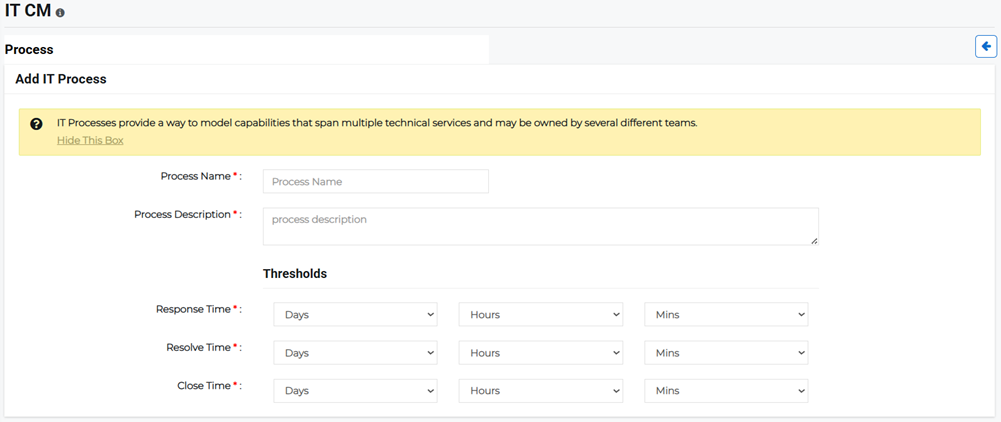
Click the IT Processes tab, then click New Process in the upper right. The Add IT Process page opens.
-
Enter the Process details:
-
Process Name: Enter the name of the IT process.
-
Process Description: Enter a description of what this process is or does.
-
-
Enter the Thresholds information:
-
Response Time: The elapsed time between an inquiry on a system and the response to that inquiry, measured in days, hours, and minutes. For example, a response time of four hours means the wait time is up to four hours before users receive a response to a query.
-
Resolve Time: The amount of time that it takes to resolve the user's service request, concern, or question, measured in days, hours, and minutes.
-
Close Time: The amount of time that it takes to fully close the request, concern, or question, measured in days, hours, and minutes. When the issue is resolved, the respective issue or request status is Closed and cannot be reopened or updated further.
-
-
Click Save.
Add an IT service
IT Services includes Cloud Services, Backup and Disaster Recovery, Help Desk Support, Managed Print Services, Training, and so on. IT Services can be created by following the steps below:
-
On the main menu, click
IT CM. The IT CM page opens. -
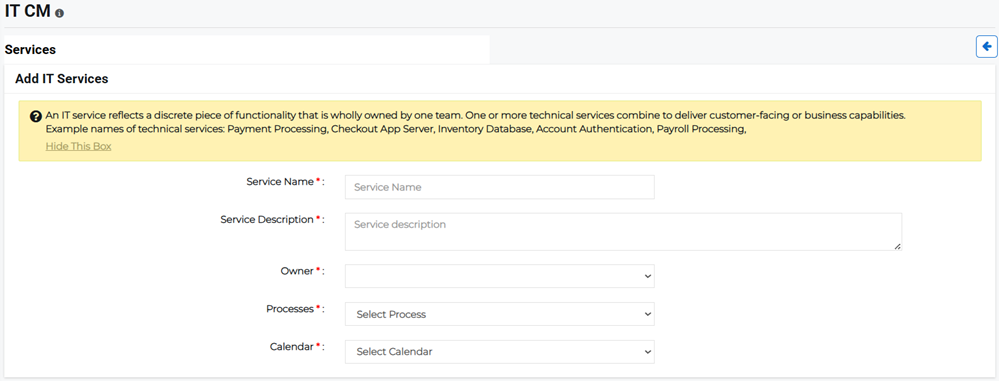
Click the IT Services tab, then click New Service in the upper right. The Add IT Services page opens.
-
Enter the Services details:
-
Service Name: Enter the name of the IT Service, for example, Voice Services.
-
Service Description: Enter a description of what this service is or does.
-
Owner: Select the owner of this service from the menu.
-
Processes: Select the IT process from the menu that the service should be created under.
-
Calendar: Select the appropriate calendar on which this service should appear.
-
-
Click Save.