Create a Contact
Organizational contacts are the human resources associated with your organization, including employees, suppliers, contractors, customers, visitors, and so on.
Well-organized contact management helps for organizing, tracking, and maintaining information about contacts in affected areas through various modes of communication to identify individuals in need of support.
To create a contact
You can create a contact in two ways:
 Create individual contacts
-
On the main menu, click
 Contacts. The Contacts page opens.
 -
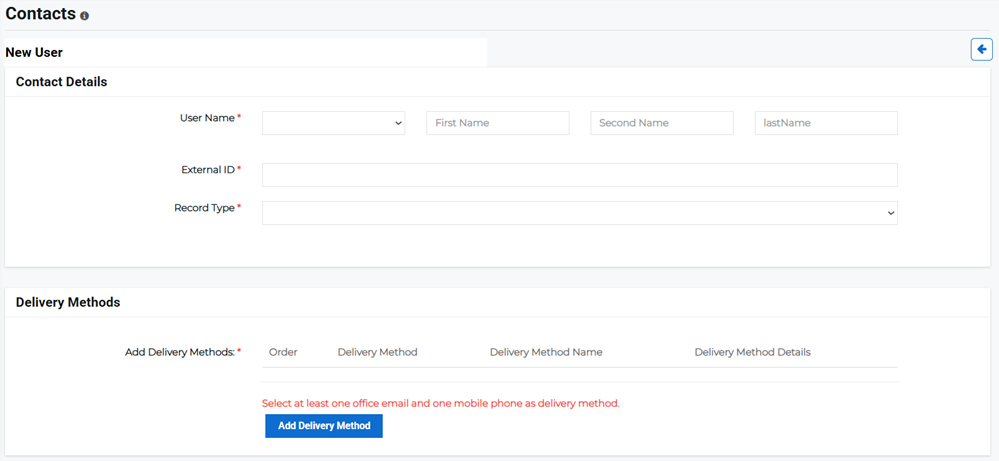
Click the Add Contact button displayed on the upper right. The New User page opens.
-
Enter the Contact Details:
-
User Name: The appropriate prefix/honorific, first name, second name, and last name of the contact.
-
External ID: The numeric or alpha-numeric string that is assigned for a contact within the system. Unique identifiers can be assigned to anyone or anything that needs to be distinguished from other entities, such as individual users, buildings, machines, or IT systems.
These values may be auto-generated with an algorithm, allocated incrementally, or chosen by the user.
-
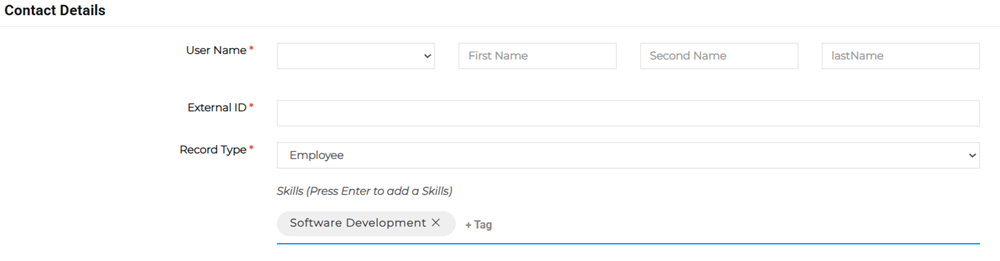
Record Type: Used to filter and categorize the contact by: Employee, Customer, and Stakeholder.
If you are adding a Customer record type, you need to add product tags. Press Enter after entering each tag.
If you are adding an Employee record type, you need to add skill tags. Press Enter after entering each tag.
-
-
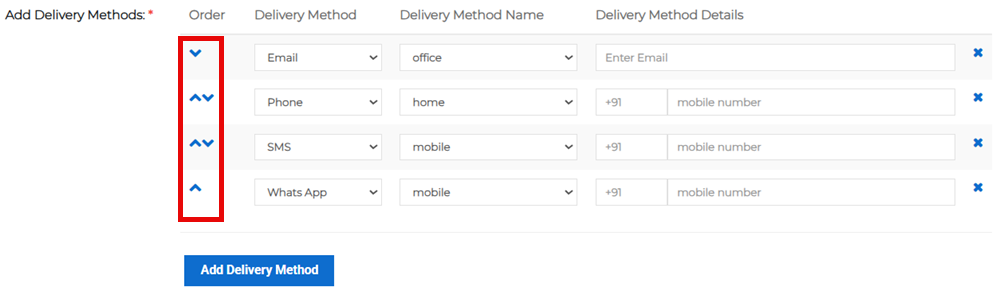
Click Add Delivery Method to enter the delivery method and details for the contact. This is the message delivery method used to notify the contact of threats, risks, and incidents.
-
Email: Add a personal or office email address.
-
Phone: Specify if it is a mobile, home, or office number. Add the preferred number, including the country and area code.
-
SMS: Add a cell number. Enter the country code and number, including area code.
-
Whats App: Add the cell number associated with the contact's WhatsApp account. Enter the country code and number, including area code.
You can add as many delivery methods as you want, but must have at least one email and one mobile phone method to create the contact.
-
-
If you entered more than one delivery method, adjust the priority of the methods by clicking the up and down arrows to change the sequence of the methods.
-
Enter the Address of the contact. At least one address for a contact is required. All address fields are required except for Apartment/Suite. After filling in all the details, the address is shown on the map.
In the case where more than one address needs to be added to a contact, click Add More Addresses and enter the appropriate details.
-
Click Save.
Bulk create contacts
-
On the main menu, click
Contacts. The Contacts page opens. -
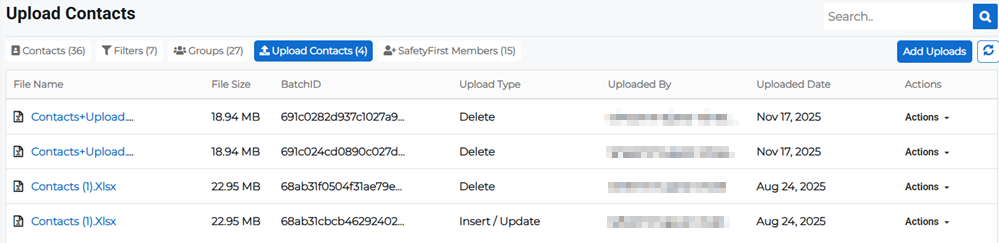
Click Upload Contacts at the top of the page.
-
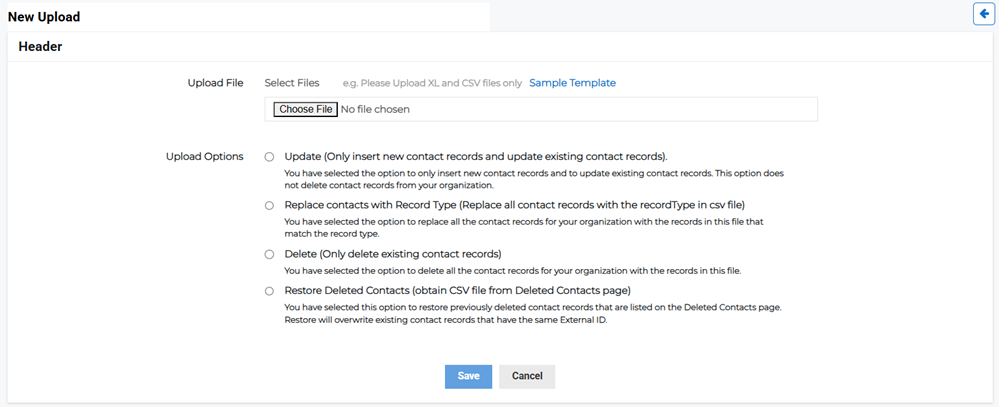
Click Add Uploads in the upper right. The New Upload page opens.
-
Download the template from the Sample Template link. Enter the contacts and their details into the file and save it.

-
Add the file using the Choose File button and selecting it from the file browser.

-
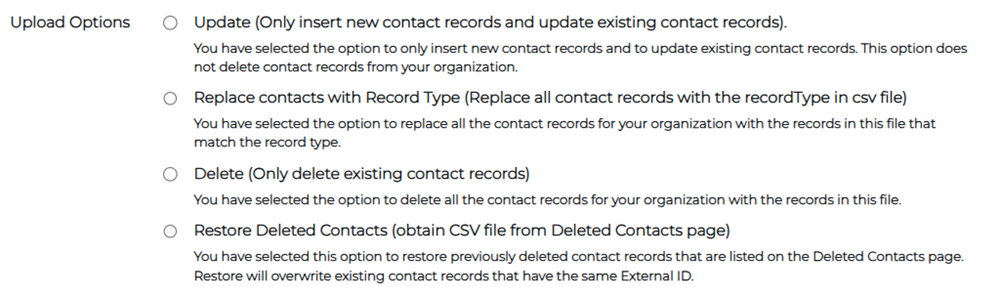
Select the Upload Options you want to use when uploading the contact file:
-
Update: Only insert new contacts from the file and update existing contact records.
-
Replace contacts with record type: Replace the record type of all contacts in the file.
-
Delete: Only delete existing contacts from the file.
-
Restore Deleted Contacts: Restore deleted contacts listed on the Deleted Contacts page with the contact records from the file.
-
-
Click Save.
The Upload Contacts button displays the history of all contacts that have been uploaded to date. Click the uploaded file name to view the complete details and contacts uploaded as part of that file.