Search for Locations, Contacts, and Assets
You can use several search functions in the map tools for finding a single location, a route between two locations, the location of a contact or asset, or the route between two contacts or assets. You can also view your search history to quickly relocate locations, contacts, and assets from a previous search.
 Search between locations
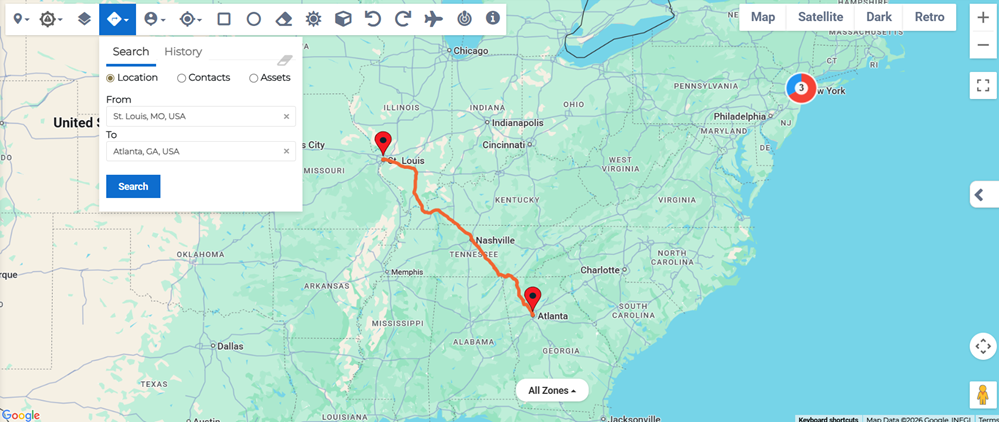
You can search between two locations by clicking the Search Directions  tool, selecting Location, then entering the locations in the From and To fields.
Search between contacts
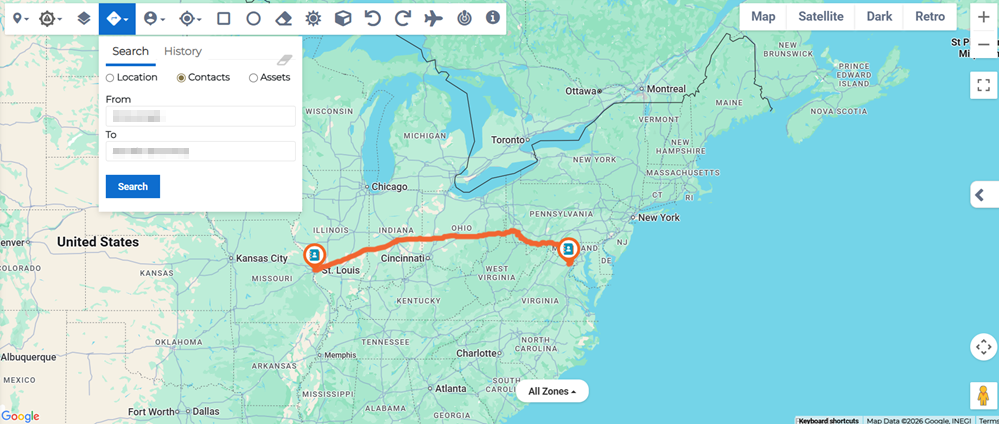
You can search between any two contacts by clicking the Search Directions tool, selecting Contacts, then entering the contacts' names in the From and To fields.
If the contact's name does not populate as you begin to type, it may not be entered into the Contacts list. You need to add them into Contacts first before you can continue.
Search between assets
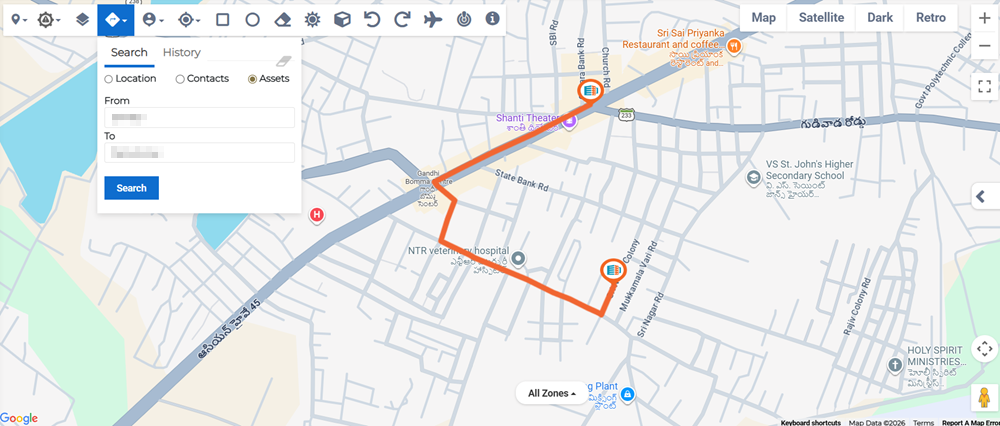
You can search between any two assets by clicking the Search Directions tool, selecting Assets, then entering the assets' names into the From and To fields.
If the asset's name does not populate as you begin to type, it may not be entered into the Assets list. You need to add them into Assets first before you can continue.
View search history
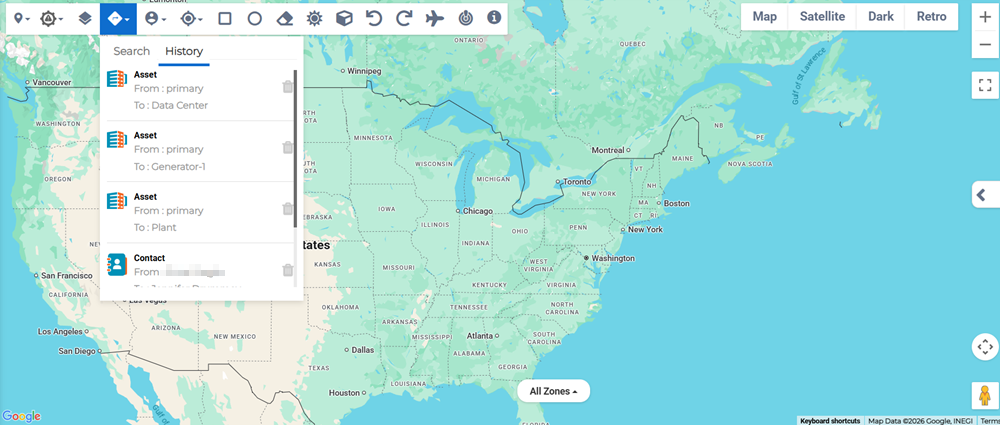
You can view all of your previous searches by clicking the Search Directions tool, then selecting the History tab. You can manually delete specific searches from the history by clicking the trash can  button for the entry.
Search for a specific contact or asset
If you know the name of a contact or asset but not the location, use the Search For Contact/Asset  tool to locate them on the map.
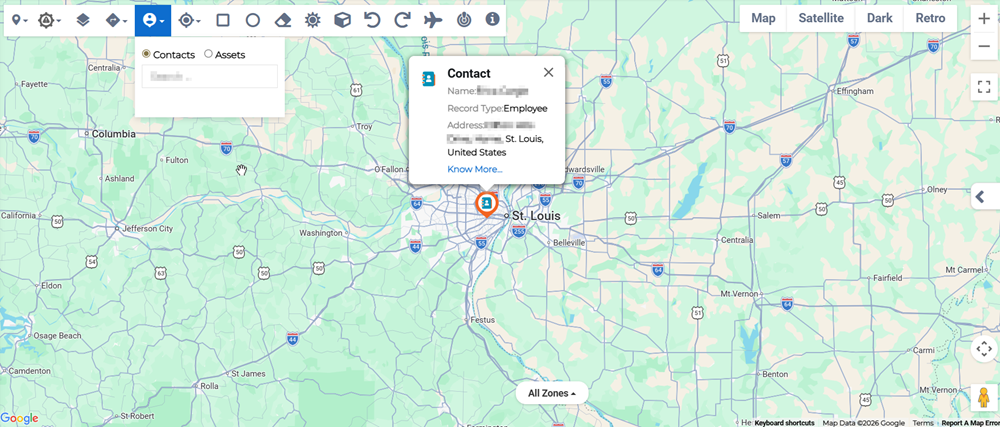
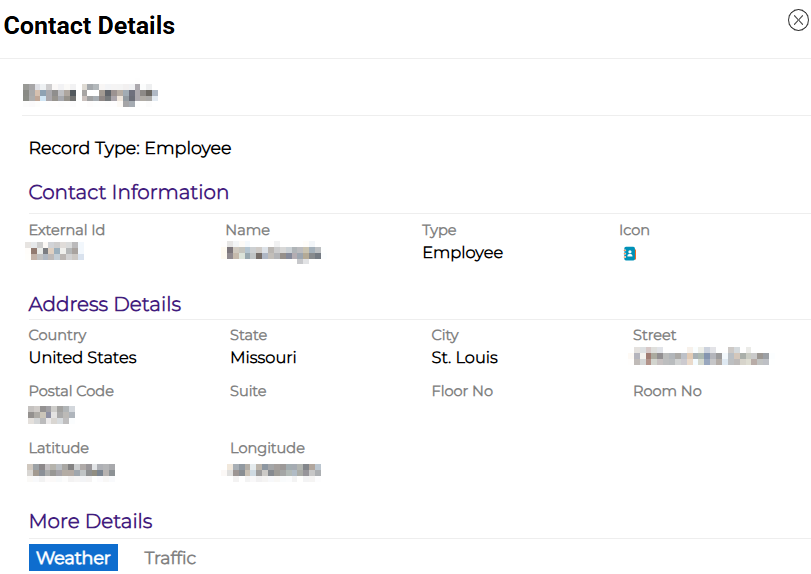
Click the Know More... link in the contact/asset pop-up to open the details pane for more information.
Search for a specific location
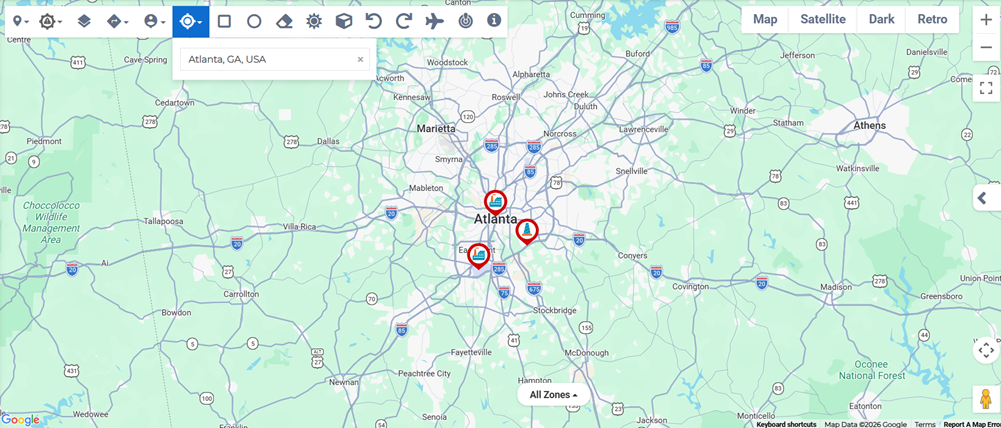
If you have a partial location or you don't know where a location is (for example what state or country a city is located in) you can search directly for a location by clicking the Locations  tool.
tool.
Search using drawing tool shapes
You can find the locations of your contacts or assets in a specific area by using the draw tools to draw shapes on the map. There are two drawing shapes:
-
Polygon: Select the Polygon
 drawing tool then begin placing points on the map to create a polygon around a specific location. You will need to click multiple times to set the polygon vertices.
 -
Circle: Select the Circle
 drawing tool then draw a circle around a location on the map.
When you have created your shape, click anywhere within it to open the fetch options. Contacts populates the map with all contacts in the selected area, while SOS Members only shows those in the selected area that are affected by an emergency incident.
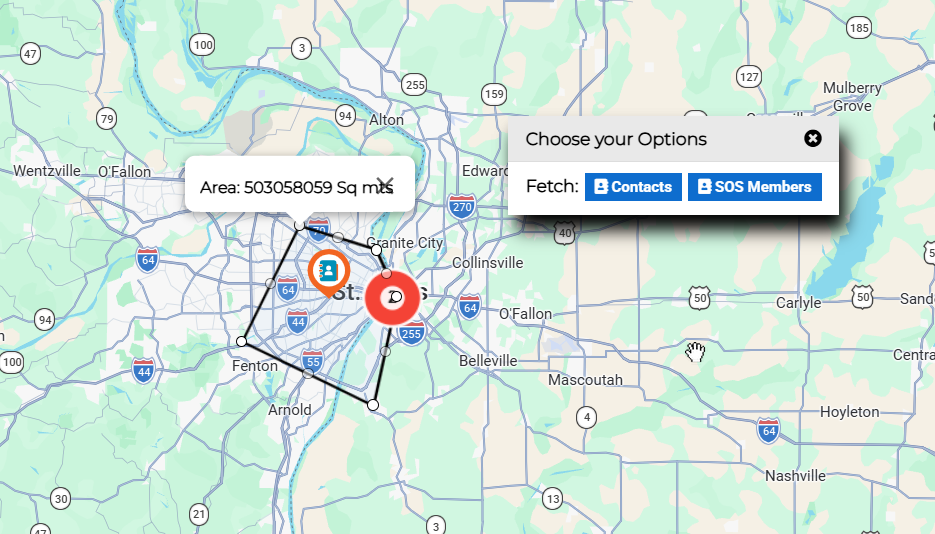
If you uses the drawing tools to create search shapes on the map, you can clear the shapes by clicking the Eraser  button.