Manage SafetyFirst Members
The list of SafetyFirst members can be refreshed on the screen using the refresh  button in the upper right. Search for a specific member in the list using the search field in the upper right.
To manage SafetyFirst members, follow the instructions by expanding the headings below.
 Review member details
-
On the main menu, click
 Contacts. The Contacts page opens.
 -
Click the SafetyFirst Members tab then click the user name link. The SOS Member page opens.
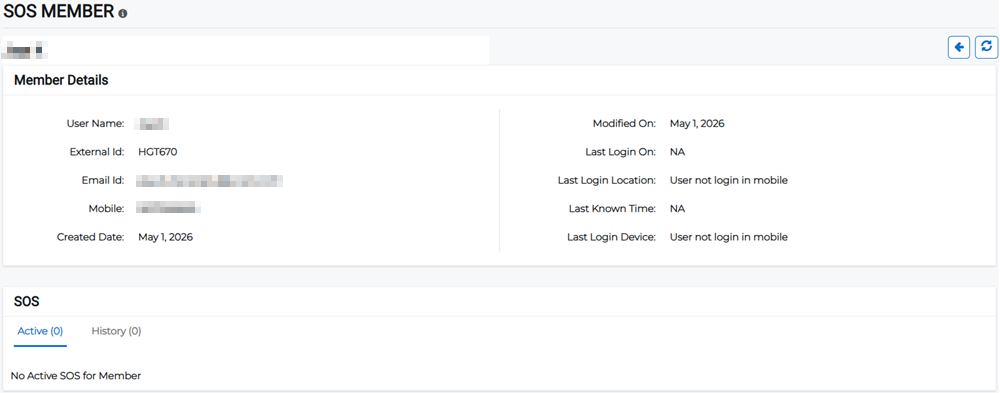
-
Review the member details and SOS history.
Delete a member
-
On the main menu, click
Contacts. The Contacts page opens. -
Click the SafetyFirst Members tab.
-
Click the Actions button for the appropriate member and select Delete Member from the menu.
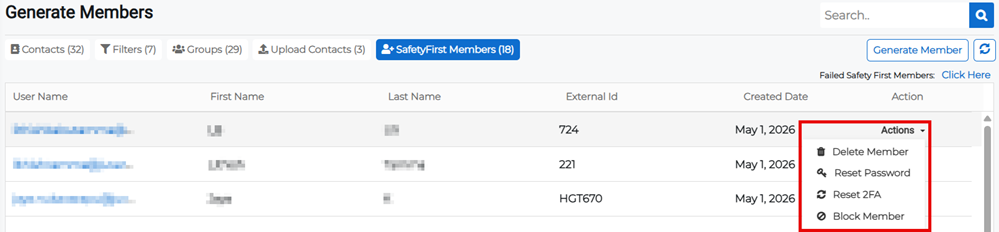
-
Confirm the deletion.
Reset a member's password or 2FA
-
On the main menu, click
Contacts. The Contacts page opens. -
Click the SafetyFirst Members tab.
-
Click the Actions button for the appropriate member and select:
-
Reset Password to reset this member's password, or
-
Reset 2FA to reset this member's two-factor authentication (2FA).
Both options send an email to the member to allow them to reset their password or two-factor authentication.
-
Block a member
-
On the main menu, click
Contacts. The Contacts page opens. -
Click the SafetyFirst Members tab.
-
Click the Actions button for the appropriate member and select Block Member to prevent them from accessing Juvare ARC.
-
Confirm that you want to block this member.
This action cannot be undone at a later point, so ensure that you want to block this member before doing so.
Review failed SafetyFirst members
-
On the main menu, click
Contacts. The Contacts page opens. -
Click the SafetyFirst Members tab.
-
In the upper right of the table, click the Click Here button next to the Failed SafetyFirst Members label. You are redirected to a list of the failed members.
-
Click the download link in the Download Failed Members column to save the list.