Manage IT Processes and Services
Managing processes and services on the IT CM page is split between the IT Processes tab and the IT Services tab, though there are some links between processes and services on their associated details pages.
The list of IT processes and IT services can be refreshed on the screen using the refresh  button in the upper right.
IT Processes
To view and manage IT processes, follow the instructions by expanding the headings below.
 View process details
-
On the main menu, click
 IT CM. TheIT CM page opens.
 -
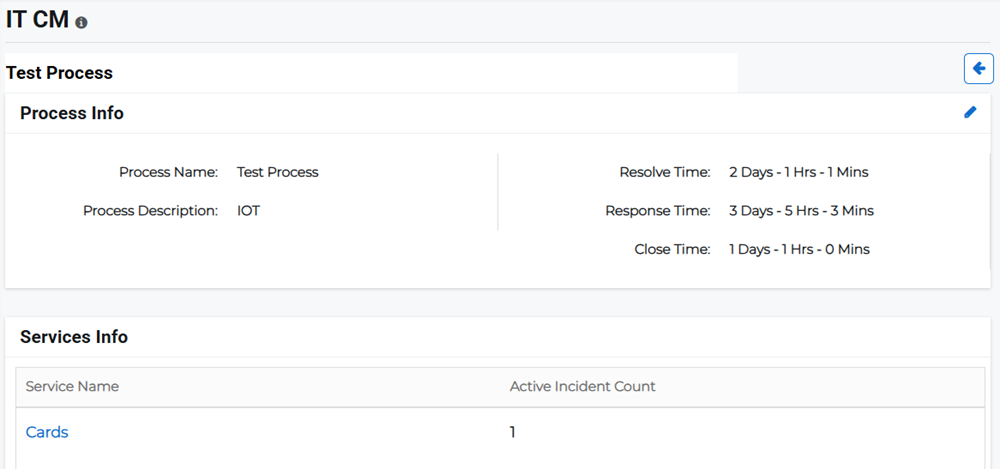
Click the IT Processestab, then click the process name link. The process details page opens.
Information about the process appears in the Process Info pane and associated services are listed in the Services Info pane.
Edit an IT process
-
On the main menu, click
IT CM. TheIT CM page opens. -
Click the IT Processestab, then click the process name link. The process details page opens.
-
Click the edit button
 in the Process Info pane.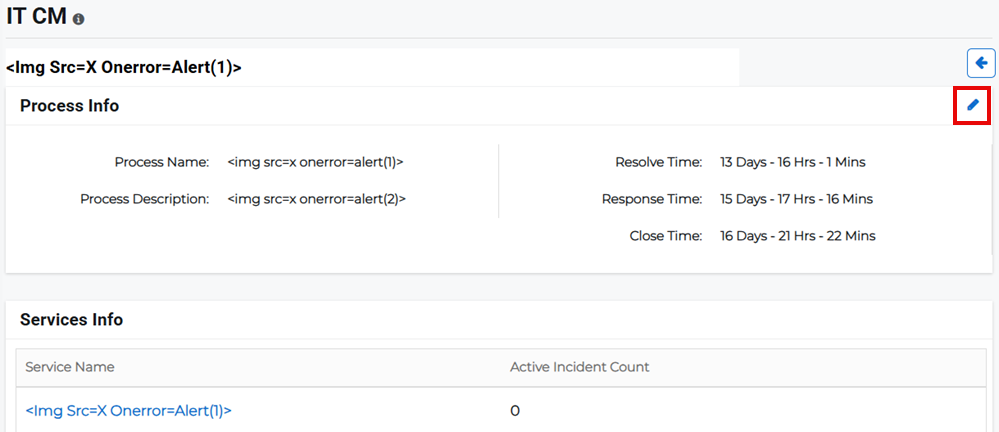
-
Edit the details of the process.
-
Click Save.
Alternatively, on the IT Processes tab, click the Actions button for the appropriate IT process and select Edit from the menu.
Delete an IT process
-
On the main menu, click
IT CM. TheIT CM page opens. -
Click theIT Processestab, then click theActions button for the appropriate IT process and select Delete from the menu.
-
Confirm the deletion.
IT Services
To view and manage IT services, follow the instructions by expanding the headings below.
View service details and history
-
On the main menu, click
IT CM. TheIT CMpage opens. -
Click theIT Servicestab, then click the service name link. TheService Detailspage opens.
Information about the service appears in the Service Details pane.
-
Scroll down to the incidents pane, and either click:
-
Active Incidents to view active incidents, and information related to the incidents.
-
History Incidents to view past incidents, and information related to the incidents.
Both active and past incidents display the incident ID, title, priority, mode, and when it was launched and who launched it.
-
View service settings
-
On the main menu, click
IT CM. TheIT CMpage opens. -
Click theIT Servicestab, click the service name link. TheService Detailspage opens.
-
Scroll down to the Settings pane. This pane contains information related to integrations, rule sets, maintenance modes, service dependencies, and separation times.
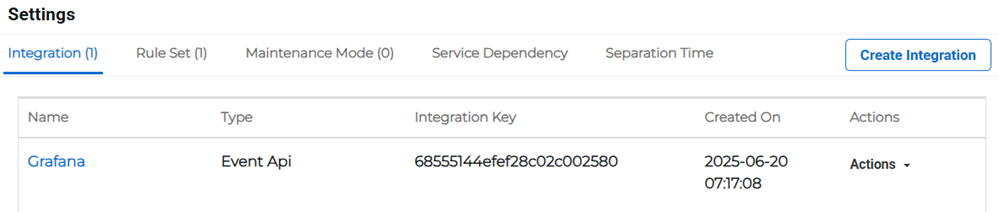
For more information on editing these settings, refer to Manage IT Service Settings.
Edit an IT service
-
On the main menu, click
IT CM. TheIT CMpage opens. -
Click theIT Servicestab, then click the service name link. TheService Detailspage opens.
-
Click the edit button
in the Service Details pane.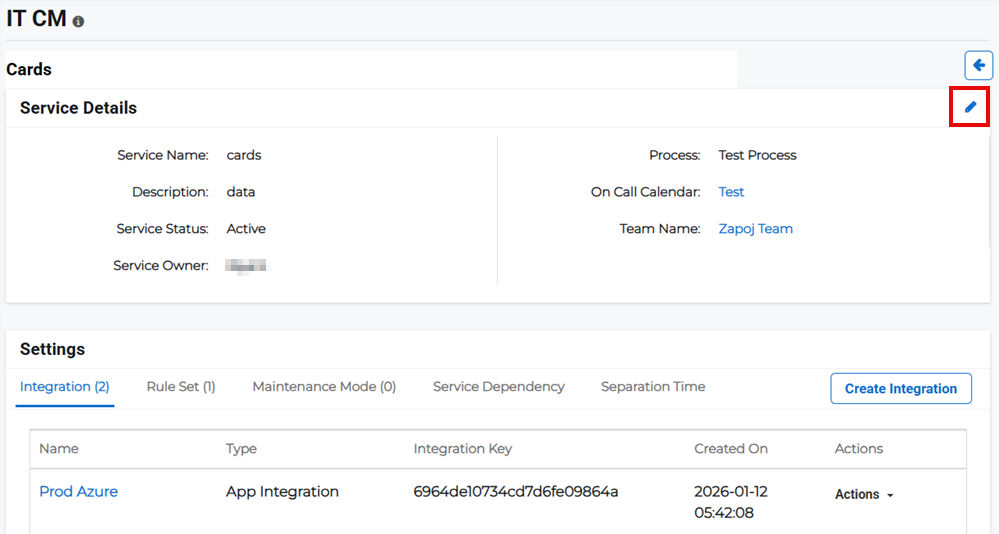
-
Edit the details of the service.
-
Click Save.
Disable or enable an IT service
After creating an IT Service, you can disable or re-enable the service.
-
On the main menu, click
IT CM. TheIT CMpage opens. -
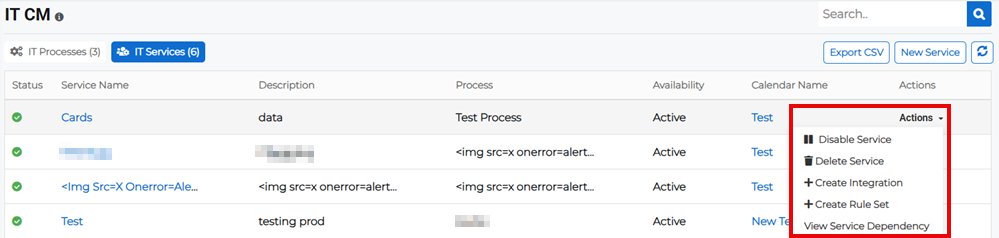
Click theIT Servicestab, then click theActionsbutton next to the relevant service and selectDisable Service from the menu. The status changes from Active to Disable.
-
Click the Actions button again and select Enable Service to re-enable it. This changes the status back to Active.
Delete an IT service
-
On the main menu, click
IT CM. TheIT CMpage opens. -
Click theIT Servicestab, then click theActions button for the appropriate IT service and select Delete Service from the menu.
-
Confirm the deletion.
Export the IT services list
-
On the main menu, click
IT CM. TheIT CMpage opens. -
Click theIT Servicestab, then clickExport CSV. The list of IT services is downloaded as a CSV file.
Related Concepts
Related Tasks