Manage Contacts
The list of contacts can be refreshed on the screen using the refresh  button in the upper right.
To manage contacts, follow the instructions by expanding the headings below.
 Edit individual contacts
-
On the main menu, click
 Contacts. The Contacts page opens.
 -
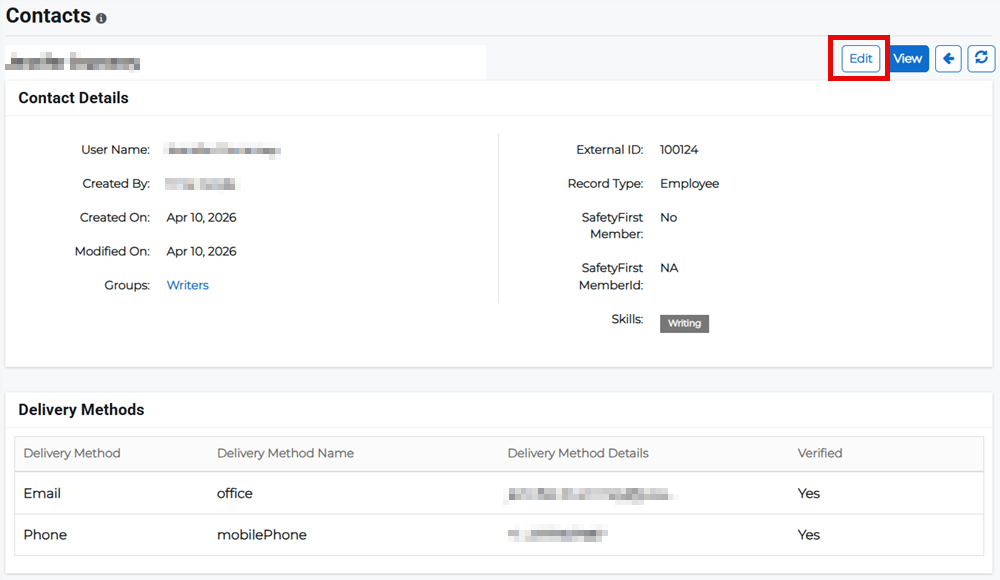
Click the first name link. The Contact details page opens.
-
Click Edit.
-
Edit the details then click Save.
Alternatively, on the Contacts page, you can click the Actions button for the appropriate contact and select Edit from the menu.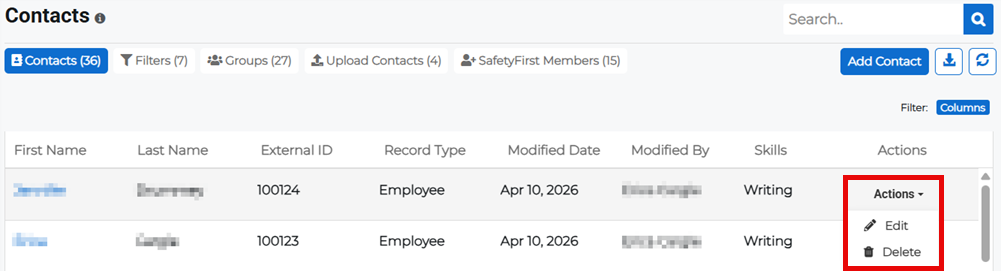
Delete individual contacts
-
On the main menu, click
Contacts. The Contacts page opens. -
Click the Actions button for the appropriate contact and select Delete from the menu.
-
Confirm the deletion.
Bulk edit contacts
This is useful for editing multiple contacts at a time.
-
On the main menu, click
Contacts. The Contacts page opens. -
Click Upload Contacts.
-
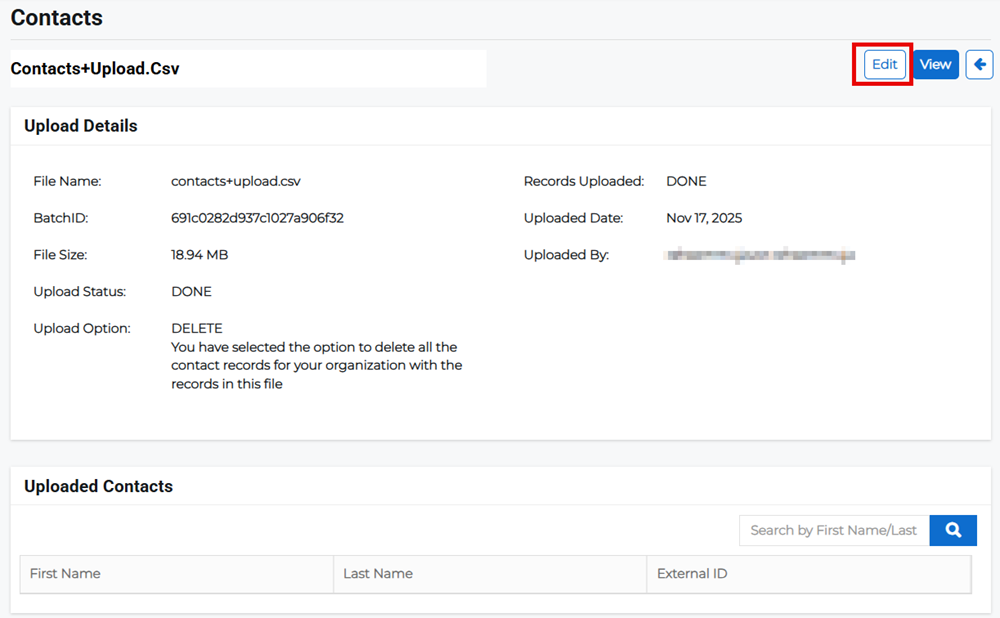
Click the filename link of the contact file you want to update. The contact file page opens.
-
Click Edit.
-
Upload an updated contact file and select an upload option.
-
Click Save.
Alternatively, on the Contacts page's Upload Contacts tab, you can click the Actions button for the uploaded contacts file you want to edit, and select Edit from the menu.
Bulk delete contacts
This is useful for deleting multiple contacts at a time.
-
On the main menu, click
Contacts. The Contacts page opens. -
Click Upload Contacts then Add Uploads. The New Upload page opens.
-
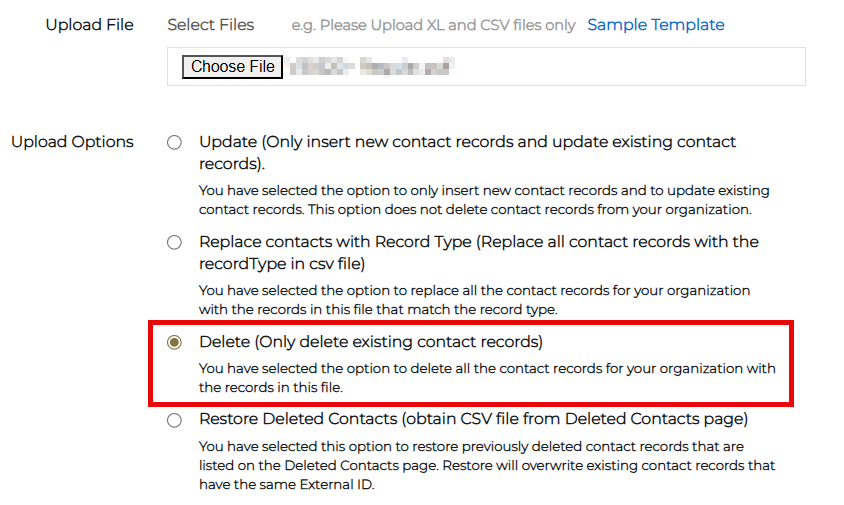
Upload the file for the data that you want to delete, and select the Delete (Only delete existing contact records) upload option.
-
Click Save.
Alternatively, on the Contacts page's Upload Contacts tab, you can click the Actions button for the uploaded contacts file you want to delete and select Delete from the menu.
Export the contacts list
-
On the main menu, click
Contacts. The Contacts page opens. -
Click the download
 button to download an exported list of contacts as a CSV file.