Manage Mission Positions
Mission positions A role that defines the qualifications required for assignment during a mission. define the qualifications and requirements that volunteers A user who can participate in missions, request shifts, and record volunteer hours. must meet to be assigned to a mission. You can create mission positions to identify qualified volunteers based on occupation, skills, training An external learning system used to manage training records and course completions., certifications, and other eligibility criteria.
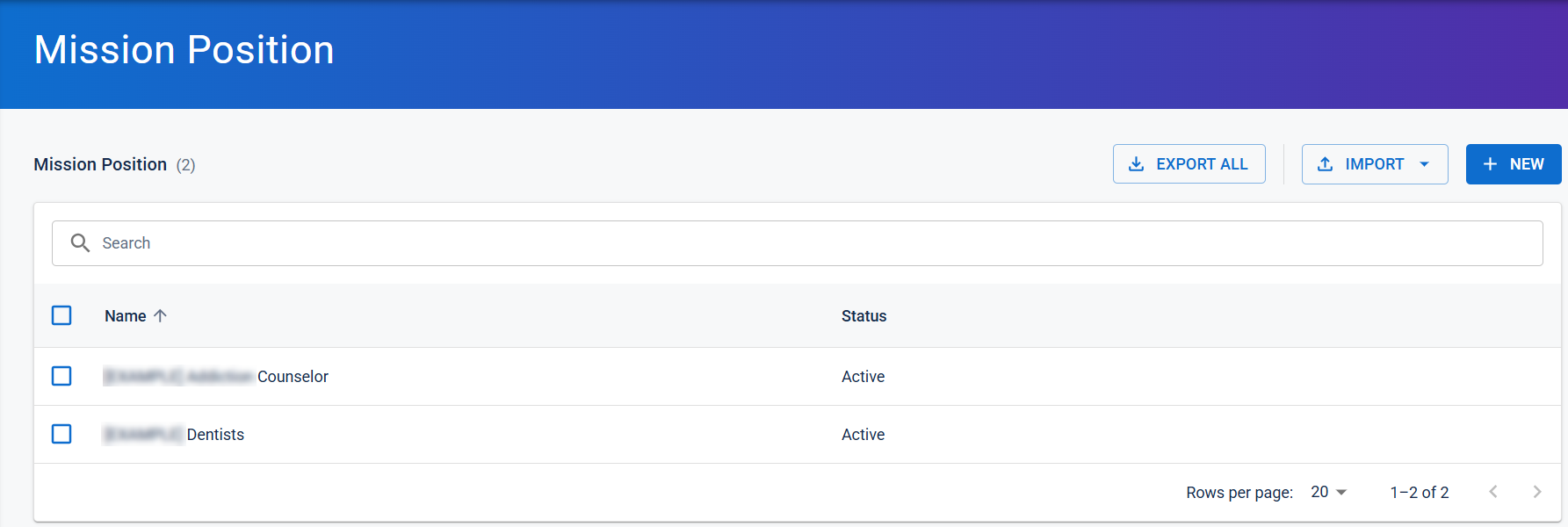
Use the Search box to locate a mission position by name.
The Number of qualified volunteers indicator displays the number of volunteers who currently meet the configured position requirements. As you modify the position criteria, you can refresh the count to view the updated number of qualified volunteers.

Create a mission position
-
On the upper right, click the more action icon
 , select Configurations.
 -
Select Mission Positions. The Mission Positions page opens.
-
Click + New.
-
Enter this information:
Mission position fields Field
Description
Name Name of the mission position. Status Status assigned to the mission position. Occupation Group Comprised of accounts with certain shared characteristics, such as role or location, but not necesarily employer.Occupation group used to identify qualified volunteers. Occupations Specific occupations required for the position. All Occupations Includes volunteers from all occupations. Description Description of the mission position. ECL Emergency Credential Level required for the position. Skills Skills required for the position. Training Courses Required training courses. COTRAIN Courses Required COTRAIN courses. Languages Required languages. State State requirement for volunteers. County or Tribe County or Tribal affiliation requirement. Willing to deploy up to, days Maximum deployment duration. Willing to travel Travel requirement. Willing to participate in federal deployments Indicates whether volunteers must be willing to participate in federal deployments. Prior emergency response commitments Indicates whether previous emergency response experience is required.
Edit a mission position
-
On the Mission Positions page, locate the mission position that you want to edit.
-
Click the mission position name.
-
Select Edit to modify the information.
-
Click Save.
Editing a mission position does not affect shifts that already use that position.
Import a mission positions
-
Click Import.
-
Select From File.
-
Upload the import file.
-
Click Import.
Download the import template
-
Click Import.
-
Select Download Template.
The template is downloaded to your computer.
Export all mission positions
Click Export All.
Export selected mission positions
-
Select the checkbox for one or more mission positions.
-
Click Export.
Set mission positions as active
-
Select one or more mission positions.
-
Click Set as Active.
Set mission positions as retired
-
Select one or more mission positions.
-
Click Set as Retired.