ManageEngine (OpManager)
Link to download and install manageEngine: Install the ManageEngine (OpManager) on ubuntu
To set up and configure ManageEngine (OpManager), follow the instructions by expanding the headings below.
 opManager installation commands
Run the following commands in sequence to download, install, and start OpManager:
-
Download the ManageEngine_OpManager_64bit.bin package by running
wgetManageEngine (OpManager) 64bit.bin. -
Set the permissions by running
sudo chmod u+x ManageEngine_OpManager_64bit.bin. -
Install the package by running
sudo ./ManageEngine_OpManager_64bit.bin. -
During installation, accept the license and add the technical support person's details (name, email, phone number, country). Follow the on-screen instructions.
-
Start opManager as a service by
cd /opt/ManageEngine/OpManager/bin. -
Run
sudo ./linkAsService.sh. -
Run
sudo systemctl start OpManager.service. -
Check the status of opManager by running
sudo systemctl status OpManager.service. -
Stop opManager by running
sudo systemctl stop OpManager.service. -
Now that you have successfully installed opManager, navigate to the browser and open the opManager dashboard using the IP address, and enter the credentials of opManager default.
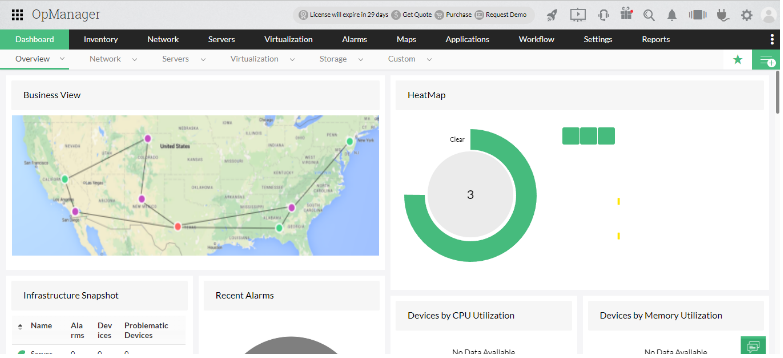
Steps to configure webhooks in opManager
Reference Link: https://www.manageengine.com/network-monitoring/webhook-integration.html
-
In opManager, navigate to Settings then Notifications then Notifications Profile.
-
Click Add to create a new notification.
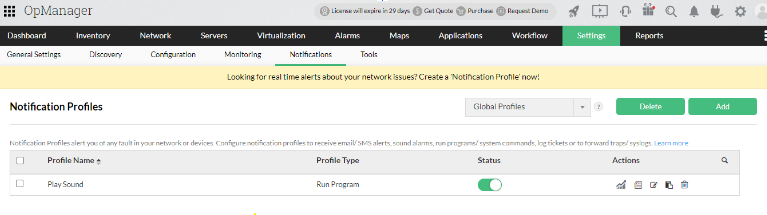
-
Select the Invoke a Webhook option.
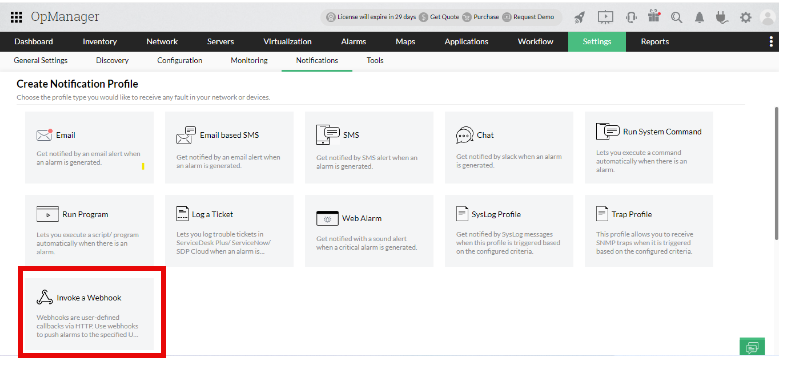
-
Add the webhook URL into the URL link field and enter the other details before clicking Next.
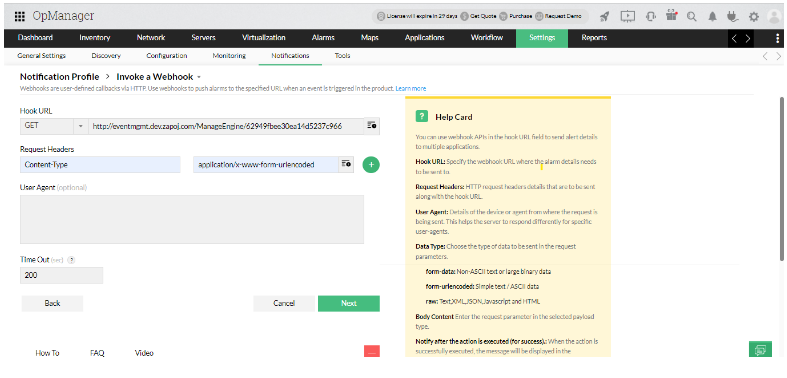
-
Copy the webhook URL and paste it into the relevant integrations field in Juvare ARC. To locate this field, navigate to the IT CM page then follow the steps for creating an integration.
-
Save the integration and copy the webhook URL that is automatically generated.
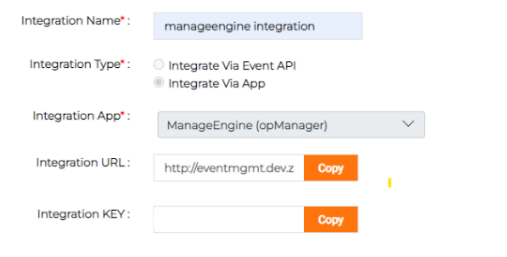
-
Add the webhook URL to the notification profile in opManager.
-
Choose the webhook criteria then click Next.
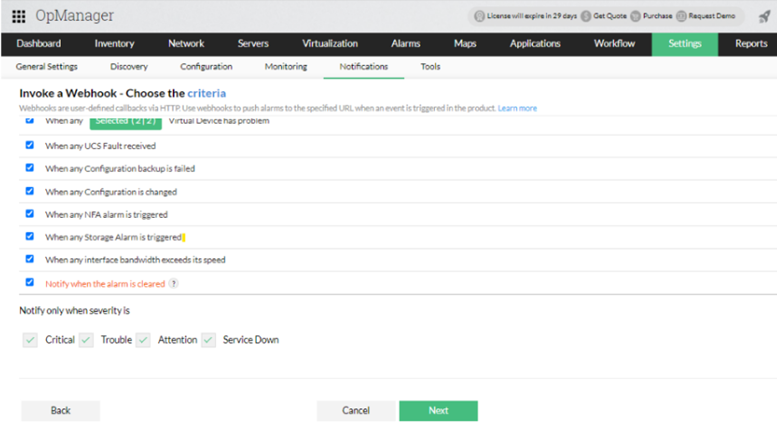
-
Select filter devices from the list of available devices then click Next.
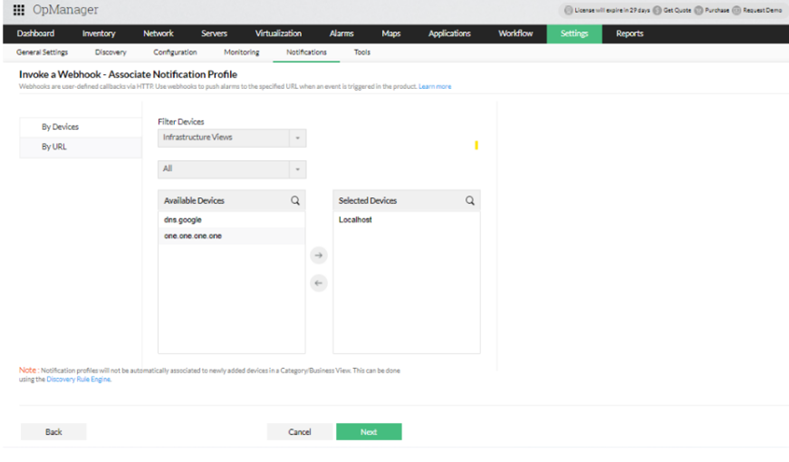
-
Enter the webhook details related to the time and trigger actions then click Next.
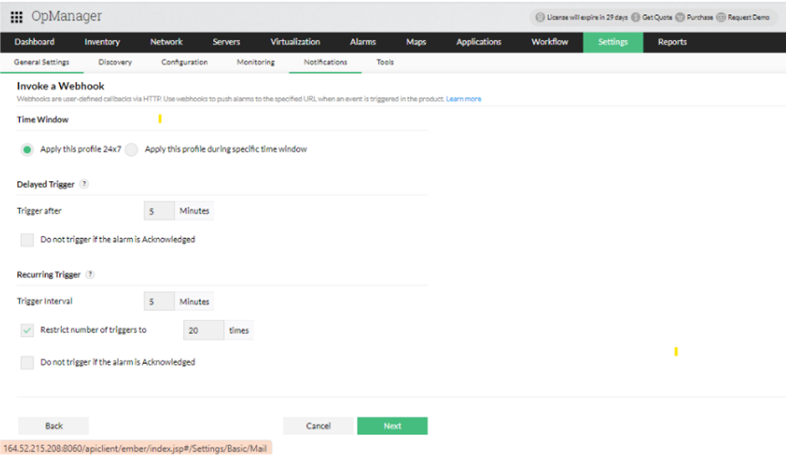
-
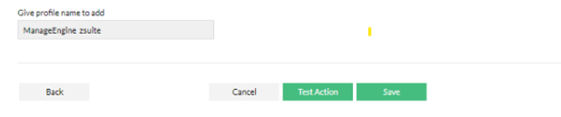
Add a profile name.
-
Two options will be presented before finishing: Test Action and Save.
-
Test Action: The related action will be performed and shows the results in Juvare ARC, but it shows only the count of particular hit actions, not a complete detail. Navigate to the IT Event Management page and look in the Alerts tab for this information.
-
Save: Save the settings and conditions set up for the webhook.
-