Splunk
URL: https://d3boqi1zs4oa8r.cloudfront.net/
To set up and configure Splunk , follow the instructions by expanding the headings below.
 Install and configure Splunk on a Linux server
Run the following commands in sequence to download, install, and start a Splunk server.
-
Run
wget -O splunk-8.2.6-a6fe1ee8894b-linux-2.6-amd64.deb "https://download.splunk.com/products/splunk/releases/8.2.6/linux/splunk-8.2.6-a6fe1ee8894b-linux- 2.6-amd64.deb. -
Run
sudo dpkg -i splunk-8.2.6-a6fe1ee8894b-linux-2.6-amd64.deb -
Accept the license agreement and set the Splunk server credentials.
-
Run
sudo /opt/splunk/bin/splunk start. -
Check whether the server status is running using the command
sudo /opt/splunk/bin/splunk status. -
Stop the splunk server using the command
sudo /opt/splunk/bin/splunk stop. -
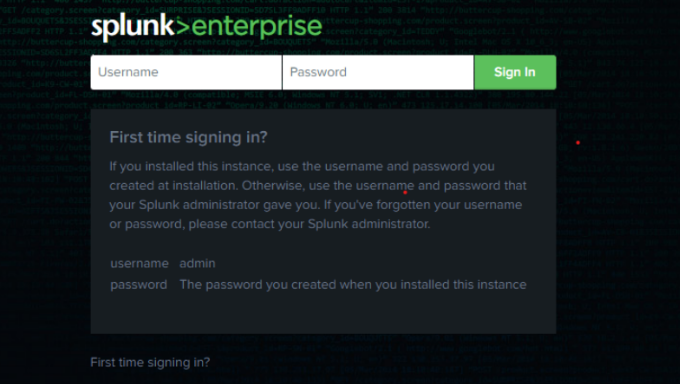
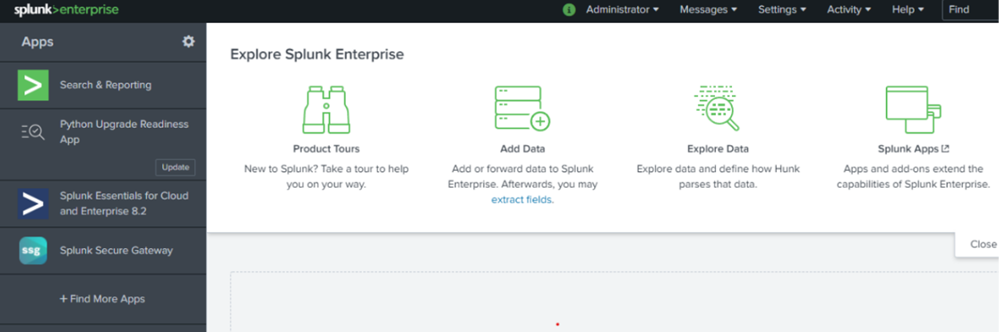
Navigate to the browser and enter the IP address with port number, then enter your credentials.
Create a new service in Juvare ARC
-
Navigate to the IT CM page and click on the IT Services tab.
-
Click New Service. The Add IT Services page opens.
-
Follow the steps in Add IT Processes and Services for more information.
Create a new process
-
Navigate to the IT CM page and click the IT Processes tab.
-
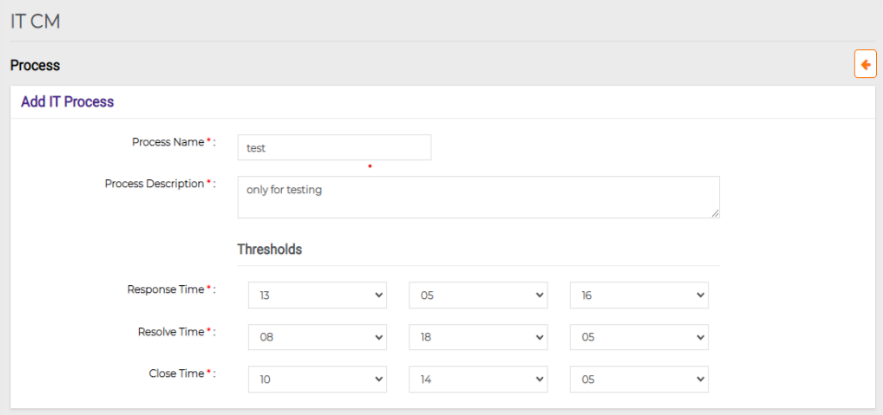
Click New Process. The Add IT Process dialog opens.
-
Follow the steps in Add IT Processes and Services for more information.
Create a new calendar
-
Navigate to the Staff Scheduling page.
-
Click + next to Calendars to create a new calendar. The New Calendar dialog opens.
-
Follow the steps in Create a Calendar for more information.
Create a new group
-
Navigate to the Contacts page and click on the Groups tab.
-
Click Add Group. The New Group page opens.
-
Follow the steps in Create a Contact Group for more information.
Create integration in Juvare ARC
-
Click on the service that has been generated. The service details page opens.
-
Click Create Integration. The Integration dialog opens.
-
Enter the integration name and specify the integration type as Integrate Via App.
-
Select the application name, in this case, Splunk.
-
Click Save. The service integration URL and key are automatically created.
-
Copy the integration URL to use in the steps in Set up Splunk webhooks.
Set up Splunk webhooks
-
Navigate to the Splunk server using the using IP address.
-
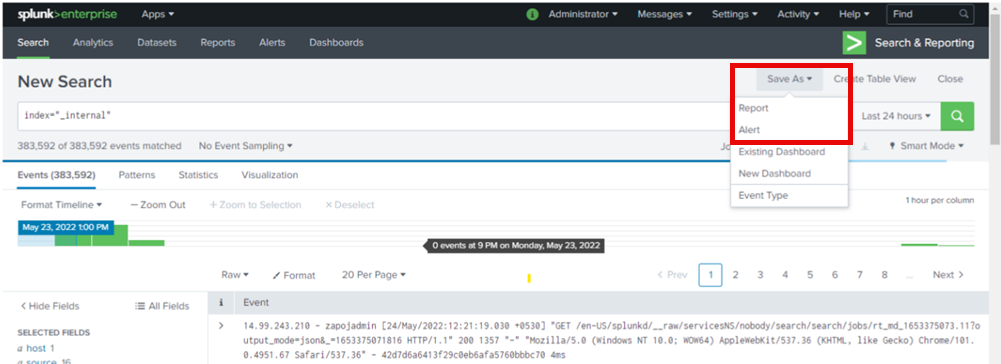
Navigate to Search & Reporting > add search on any index.
-
Click Save As and select Alert from the menu.
-
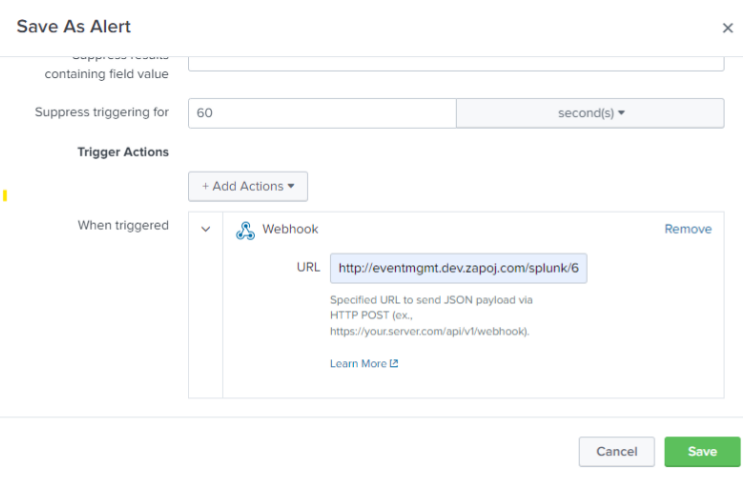
Enter the details and paste the integration webhook URL you copied during the steps in Create integration in Juvare ARC into the URL field.
-
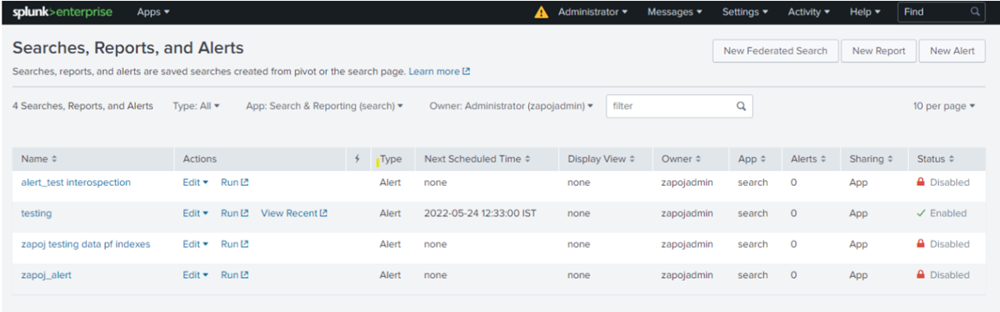
You can see the created alerts under Settings > Searches, Reports and Alerts.
-
In Juvare ARC, you can now see the notification of alerts in the Alerts tab of the IT Event Management page.
Rule set creation
Rules are created for filtering payload data.
-
Navigate to the IT CM page and click on the IT Services tab.
-
Click on any service. The Service Details page opens.
-
Click the Rule Set tab under Settings then click Create Rule Set.
-
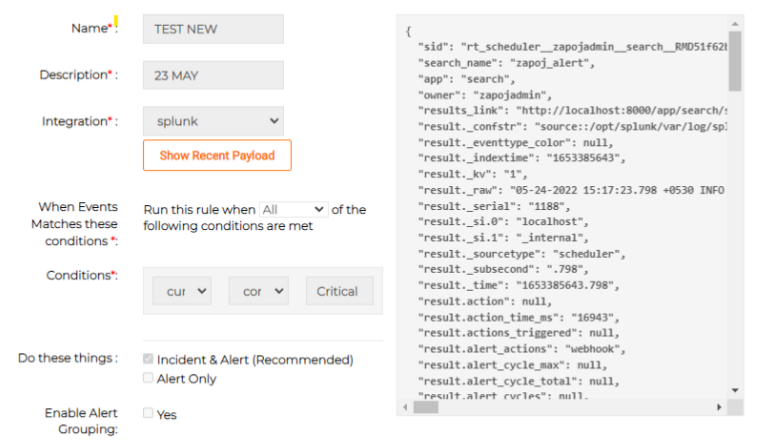
Follow the steps for creating rule sets given in Add IT Processes and Services.