Bitbucket
To set up and configure Bitbucket, follow the instructions by expanding the headings below.
 Create a new service in Juvare ARC
-
Navigate to the IT CM page and click on the IT Services tab.
-
Click New Service. The Add IT Services page opens.
-
Follow the steps in Add IT Processes and Services for more information.
Create a new calendar
-
Navigate to the Staff Scheduling page.
-
Click + next to Calendars to create a new calendar. The New Calendar dialog opens.
-
Follow the steps in Create a Calendar for more information.
Create a new group
-
Navigate to the Contacts page and click on the Groups tab.
-
Click Add Group. The New Group page opens.
-
Follow the steps in Create a Contact Group for more information.
Create integration
When the new service has been created successfully:
-
Click on the service that has been generated. The service details page opens.
-
Click Create Integration. The Integration dialog opens.
-
Enter the integration name and specify the integration type as Integrate Via App.
-
Select the application name, in this case, Bitbucket.
-
Click Save. The service integration URL and key are automatically created.
-
Copy the integration URL to use in the steps in Set up Bitbucket webhooks.
Set up Bitbucket webhooks
-
Log into Bitbucket using valid credentials.
-
Navigate to repositories on the login page.
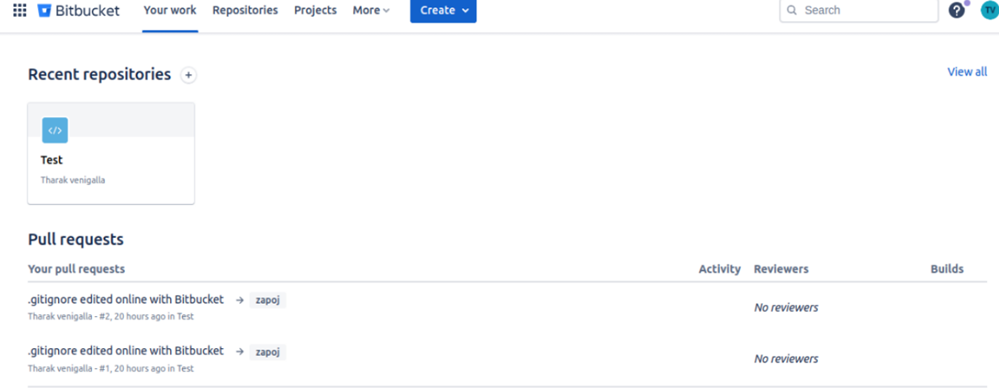
-
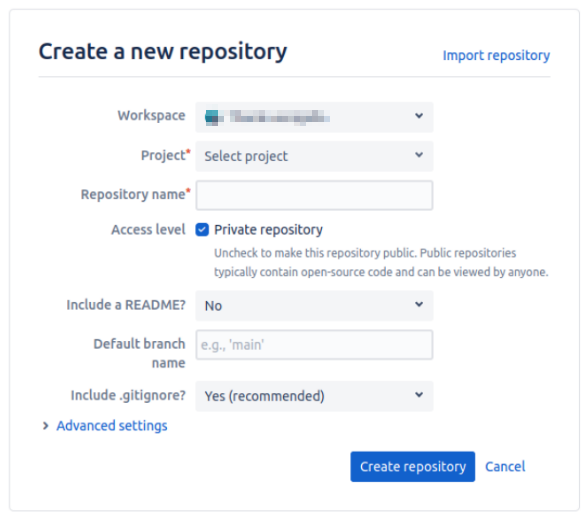
Create a new repository.
-
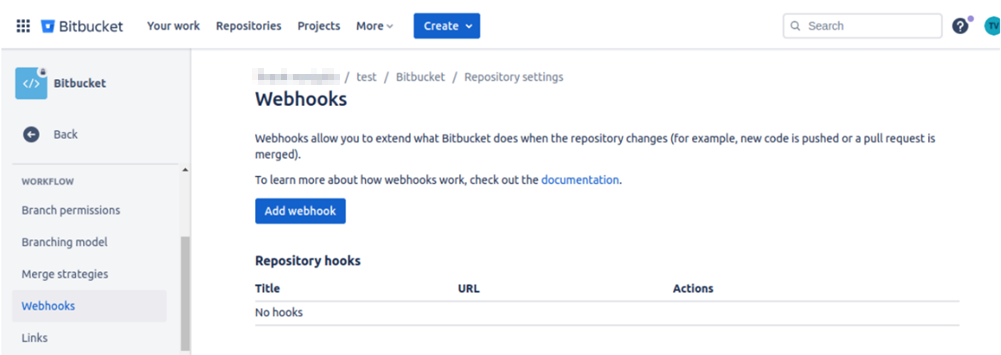
Navigate to workflow then webhooks within the repository settings.
-
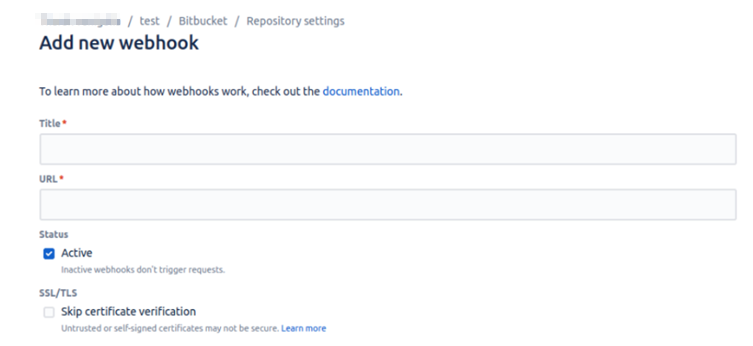
Click Add webhook. The Add new webhook page opens.
-
Paste the integration URL you copied during the steps in Create integration into the new webhook URL to the URL field.
-
Enable all trigger checkboxes.
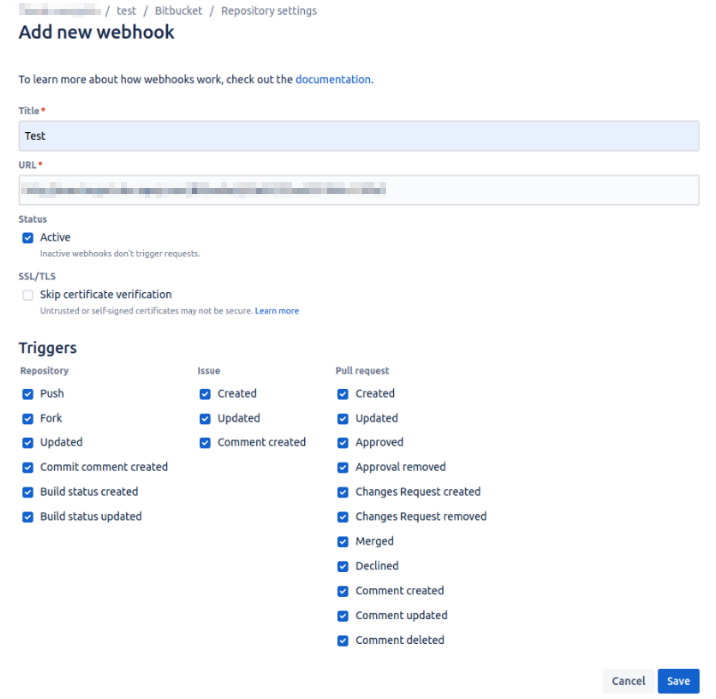
-
Click Save.
-
Initiate a pull request to the new webhook.
-
Commit and enter the
.gitignorecommand in the commit message.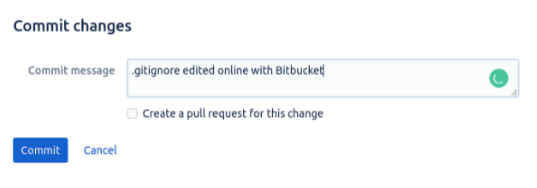
Create a rule set
Rules are created for filtering payload data.
-
Navigate to the IT CM page and click on the IT Services tab.
-
Click on any service. The Service Details page opens.
-
Click the Rule Set tab under Settings then click Create Rule Set.
-
Follow the steps for creating rule sets given in Add IT Processes and Services.